---
title: Flow History & Version Control
description: Protect your work in the Cancel Flow builder with undo, redo, discard, and one-click restore of any previously published version.
---
The Cancel Flow builder saves your changes automatically as you edit. That is convenient most of the time, but **auto-save also means that a stray click, an accidental deletion, or a mid-edit mistake can be written to your draft before you notice**. Version control gives you a safety net around that behavior: you can step backward through your recent edits, throw away a messy draft, or jump back to any version of the flow you have previously published.
This page explains how each control works, when to reach for it, and what actually gets versioned behind the scenes.
## Why this exists
There are two moments where customers historically lost work. The first is the small one: you delete a step, move something by mistake, or paste the wrong copy into a header, and auto-save persists the change before you realize. The second is larger: you spend an afternoon reworking a flow, decide the new version is worse than the one you shipped last month, and want the old one back.
**Undo/redo** addresses the first case. **Version history with restore** addresses the second. **Discard Changes** is the middle ground — when you want to throw away everything you have touched in this editing session and return to the currently live flow.
## Accessing Version History
Open any flow in the builder (`app.churnkey.co/builder/:flowId`). In the top toolbar you will find a **History** dropdown next to the Undo and Redo buttons. On smaller screens the same action lives inside the collapsed menu button.
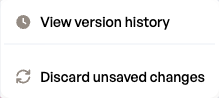
Clicking **History** opens a short menu with two options: **View version history** and **Discard unsaved changes**. The second option is disabled when your draft is in sync with the last published version.
The History dropdown exposes both entry points into version control.
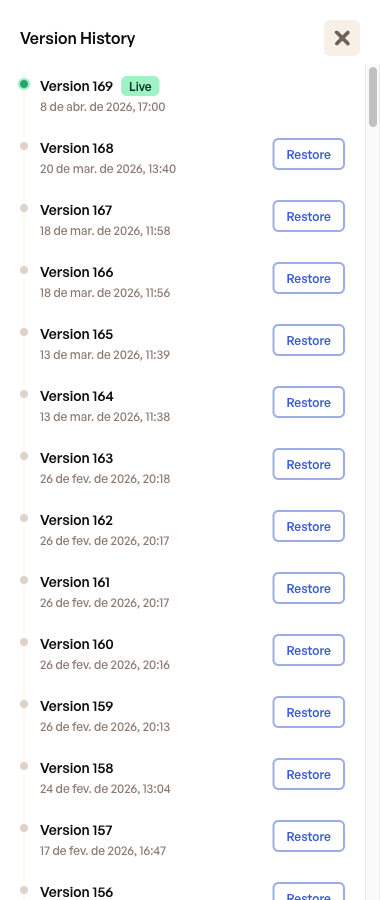
Choosing **View version history** opens the Version History drawer on the right side of the editor. The drawer lists every published version of this flow, newest first, and stays open while you continue to work so you can compare what is in front of you against previous snapshots.
The drawer lists every published version of the flow with date, time, and a Restore shortcut.
Each entry in the timeline shows:
- A **version number** (auto-incremented every time you publish).
- The **date and time** the version was published.
- A **Live** badge on the version currently being served to your customers.
- A **Restore** button on every version that is not the live one.
If you have unpublished changes in the draft, the **Discard unsaved changes** option in the History dropdown becomes enabled, giving you a shortcut to revert without leaving the builder.
## Undo and Redo
The builder keeps a rolling history of the changes you make during an editing session. You can step backward and forward through that history at any time.
### Keyboard shortcuts
| Action | macOS | Windows / Linux |
| --- | --- | --- |
| Undo | `⌘Z` | `Ctrl+Z` |
| Redo | `⌘⇧Z` | `Ctrl+Shift+Z` or `Ctrl+Y` |
The same actions are available as **Undo** and **Redo** buttons in the builder toolbar. On mobile screens the buttons move into the collapsed toolbar menu.
Undo, Redo, and the History dropdown live next to the Saved indicator in the builder toolbar.
### How far back can you go?
The builder stores up to **50 recent states** per editing session. Once you pass that limit, the oldest state drops off the bottom of the stack.
Continuous changes are grouped together so that the undo stack stays useful. The builder waits **500 milliseconds** after you stop typing (or dragging, or clicking) before it records a new snapshot. In practice this means that typing a paragraph of copy is a single undo, not one undo per keystroke — `⌘Z` takes you back to before you started typing, not back one character.
::alert{type="tip"}
Undo and redo are **session-local**. They track the changes you have made since you opened the builder on this device. Closing the tab, refreshing the page, or switching devices clears the stack. To recover something from a previous session, use Version History.
::
## Discard Changes
**Discard Changes** reverts your current draft to match the version that is live for your customers right now. Use it when you have been experimenting, decide nothing you did is worth keeping, and want a clean slate.
To discard, click **History** in the toolbar and choose **Discard unsaved changes**. The option is only active when your draft diverges from the last published version.
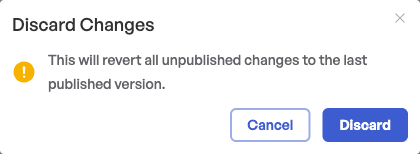
Discard Changes asks for confirmation before replacing your draft with the live version.
Churnkey asks you to confirm before discarding, because the action cannot be undone from the drawer itself:
> This will revert all unpublished changes to the last published version.
Confirming replaces your draft with the live version. Specifically, the following fields are restored:
- All **steps** and their configuration
- The **flow name**
- The **brand image** and **primary color**
- The list of **translated languages**
If you discard by mistake, you can still press `⌘Z` to bring the draft back — undo works across this action too, as long as you have not closed the tab.
## Restoring a previously published version
Restoring goes one step further than Discard: instead of returning to the current live flow, you can pick **any version in the timeline** and roll the draft back to its contents.
1. Open the Version History drawer from the toolbar.
2. Find the version you want to restore. Each entry shows its publish timestamp.
3. Click **Restore** on that entry.
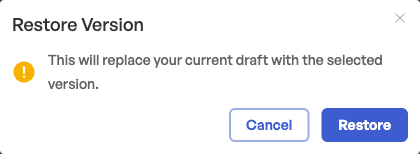
4. Confirm in the warning modal that appears.
Restore warns you before overwriting the draft — the action is undoable via ⌘Z.
Restoring rewrites your current draft with the steps, flow name, branding, and translations from the version you selected. **Restoring does not re-publish the flow.** Your customers continue to see the live version until you review the restored draft and publish it yourself — this lets you make further edits on top of an old version before shipping it.
::alert{type="info"}
**Restore is undoable.** If you click Restore on the wrong version, press `⌘Z` (or `Ctrl+Z`) to bring back the draft you had before. The restore counts as a single entry in the undo stack, so one undo is enough.
::
## What gets versioned
Understanding what lands in the timeline — and what does not — will save you some head-scratching the first time you go looking for something.
**Only published versions appear in Version History.** Every time you click **Publish**, Churnkey takes a snapshot of the flow in its current state, locks that snapshot so it cannot be edited, and advances your working draft on top of it. That snapshot is what shows up in the drawer.
Drafts in progress are not versioned. If you are halfway through redesigning a step and close the builder, the draft is auto-saved, but nothing new lands in the timeline. You are protected during that editing session by the undo stack, and protected against losing the live flow by Discard and Restore.
This model keeps the timeline focused on **states you actually shipped to customers**. You are not wading through dozens of half-finished drafts to find the last version that went live.
## Frequently asked questions
### Does restoring an old version publish it automatically?
No. Restore only replaces your current draft. You still need to click **Publish** when you are ready for customers to see it. That gives you a chance to tweak the restored flow before shipping it.
### Can I preview a version before restoring it?
Not directly. The timeline shows each version's publish timestamp, and restoring itself is undoable — so the recommended workflow is to restore the version you are considering, inspect the draft in the builder, and press `⌘Z` if it was not what you wanted.
### Does undo work after I publish?
Publishing is not itself undone by `⌘Z`. Undo and redo track edits to your draft. Once a version is published it lives in the timeline, and if you need to roll back, use Restore to bring an earlier published version into the draft and publish again.
### Are A/B test variants versioned the same way?
Yes. Each flow — including each variant of an A/B test — has its own independent version history. Publishing one variant does not create a version on the other.
### Why did my undo history disappear?
The undo stack is held in memory for your current editing session. Refreshing the page, closing the tab, or opening the flow on another device starts a fresh stack. To reach a state from a previous session, use Version History.
### What happens to the live flow while I am editing?
Nothing. Customers continue to see the last published version until you publish again. Your draft, your undo/redo stack, and any discards or restores only affect the builder view — they never change what is live in production until you explicitly publish.