Hidden Plans
Hidden Plans let you present subscription plans that don't exist on your public pricing page to customers who are about to cancel.
This is not a separate feature. Hidden Plans are a strategic use of the Switch Subscription Plan offer. The difference is that the plan you offer during cancellation is one your customers have never seen before.
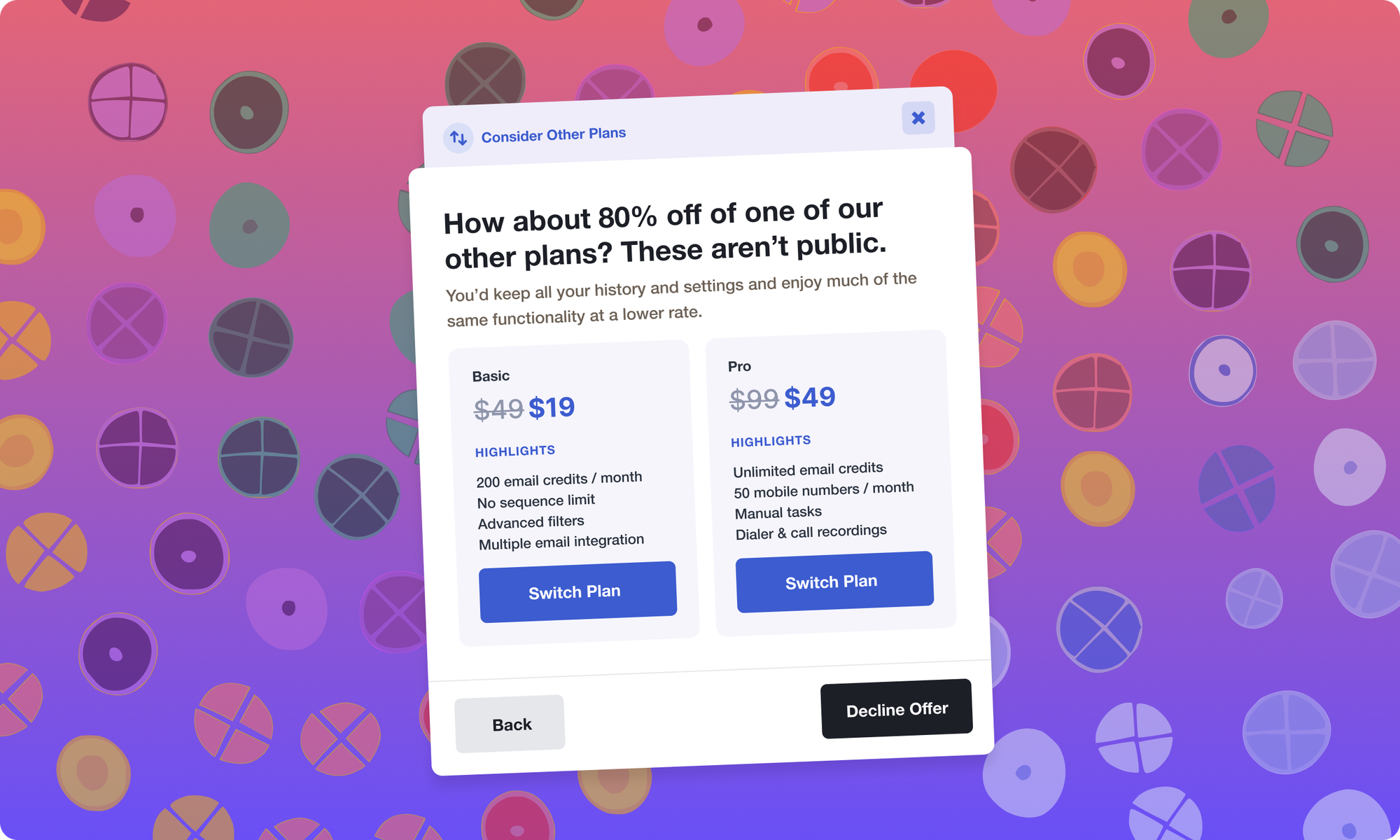
Why Hidden Plans Work
A customer who is about to cancel has already decided your current plans don't fit. But an offer that feels exclusive and tailored to their exact pain point creates a reason to reconsider.
A few examples of what a hidden plan can look like:
A "Lite" plan for low-usage customers.
A stripped-down plan at a lower price lets them stay without paying for what they don't use.
A longer billing cycle with a built-in discount.
An annual plan at a meaningful discount, only available at the moment of cancellation.
A seasonal plan for intermittent users.
A plan tied to specific usage periods (holidays, tax season, school terms) that feels built for them.
A hybrid plan combining features from different tiers.
Cherry-pick the features a segment of customers actually needs to close the gap between your standard offerings and what they want.
Configuration
Step 1: Create the Plan in Your Payment Provider
Hidden plans need to exist in your payment provider before Churnkey can offer them.
In Stripe:
- Go to your Stripe Dashboard and navigate to Product catalog
- Click Add product (or add a new price to an existing product)
- Fill in the plan details: name, price, billing interval
- Save the product
Step 2: Configure the Offer in Churnkey
Once the plan exists in your payment provider, configure it as a Switch Subscription Plan offer inside your cancel flow.
- Navigate to Cancel Flows > Flows
- Select the step where you want to present the hidden offer (Initial Offer, Cancellation Survey, or Final Offer)
- Choose "Switch Subscription Plan" as the offer type
- Select your hidden plan from the dropdown. It pulls directly from your payment provider's plan list.
Then customize how the plan appears to customers. Go to Cancel Flows > Settings and scroll to Plan Switching Offer Details. For each hidden plan, you can set:
Customer-Facing Nickname: Give it a name that communicates value, not an internal product ID (e.g., "Essential Plan" or "Flexible Annual").
Tagline: A short line that tells the customer why this plan exists. Example: "Core features at a price that works for you."
Feature list: Highlight what's included. Focus on the features that matter most to the customer segment you're targeting.
Pricing display: Use the MSRP field to show a crossed-out "regular" price if you want to emphasize the savings. The Price Override field lets you display custom pricing text.
For the full set of configuration options, refer to the Switch Subscription Plan documentation.
Best Practices
Create plans for specific cancellation reasons. Look at your cancellation survey data first. If "too expensive" dominates, a lower-priced plan fits. If "I don't use it enough" is common, a reduced-feature plan is more appropriate.
Keep it to one plan per offer step. Presenting a single, focused recommendation converts better than showing multiple options.
Make the exclusivity clear in your copy. Use phrases like "available only for existing customers" or "not on our pricing page" to reinforce the sense of a special deal.
Match the hidden plan to the customer's current billing currency. Churnkey automatically filters plans by currency, but make sure you've created the hidden plan with the right currency in your payment provider. Otherwise, it won't appear in the dropdown for customers using a different currency.
Test with Preview and Test Mode before going live. Use the Preview button to check the visual presentation, and Test Mode to verify the plan switch applies correctly in your payment provider's test environment.