Slack notifications
Head to the above page and click "Connect to Slack". This will walk you through the configuration process within Slack. Give the Churnkey App for Slack authorization and choose which channel you want session notifications posted to.
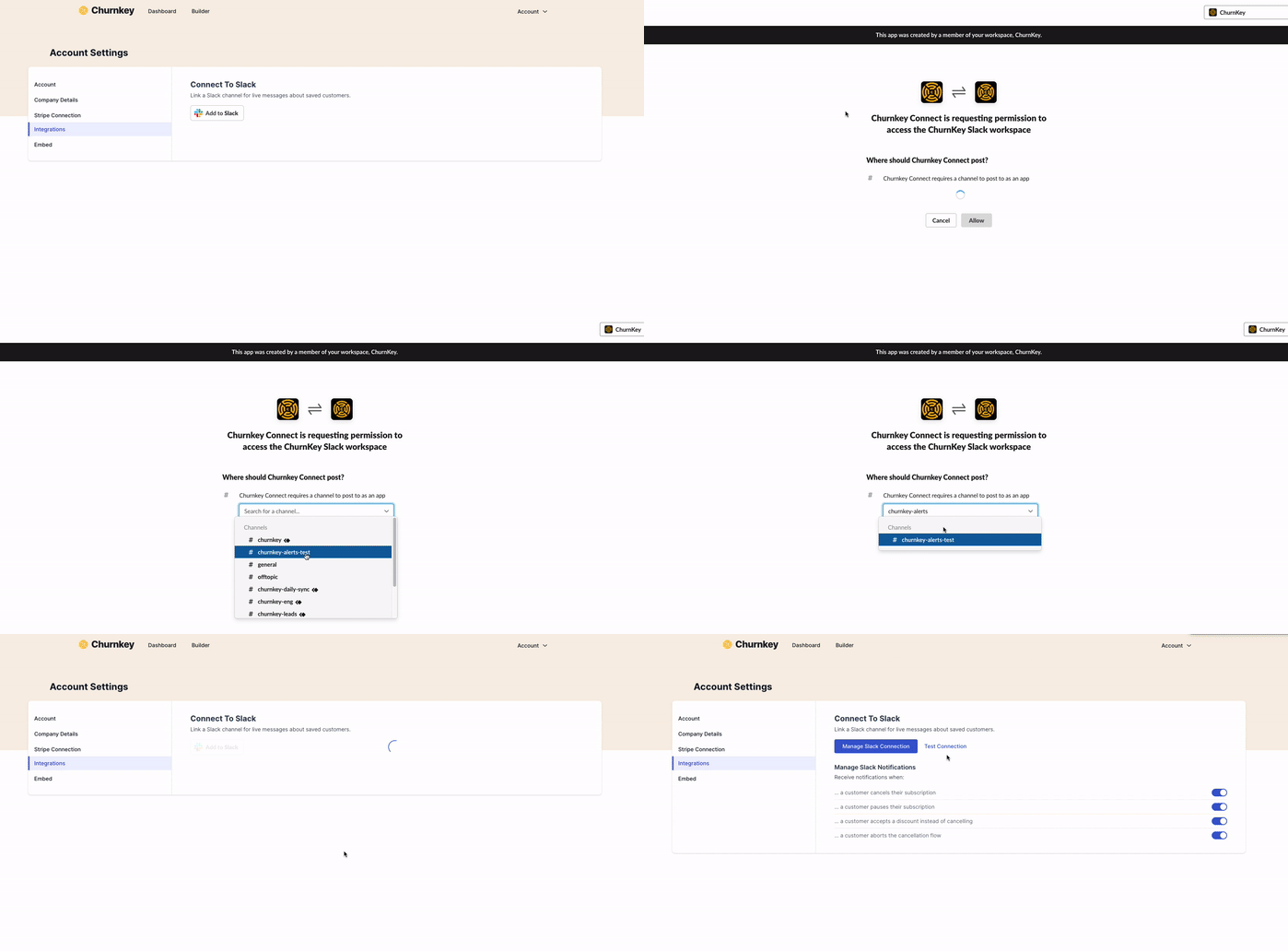
Once connected, you’ll receive a Slack message whenever one of your customers goes through your Cancel Flow. Example below:

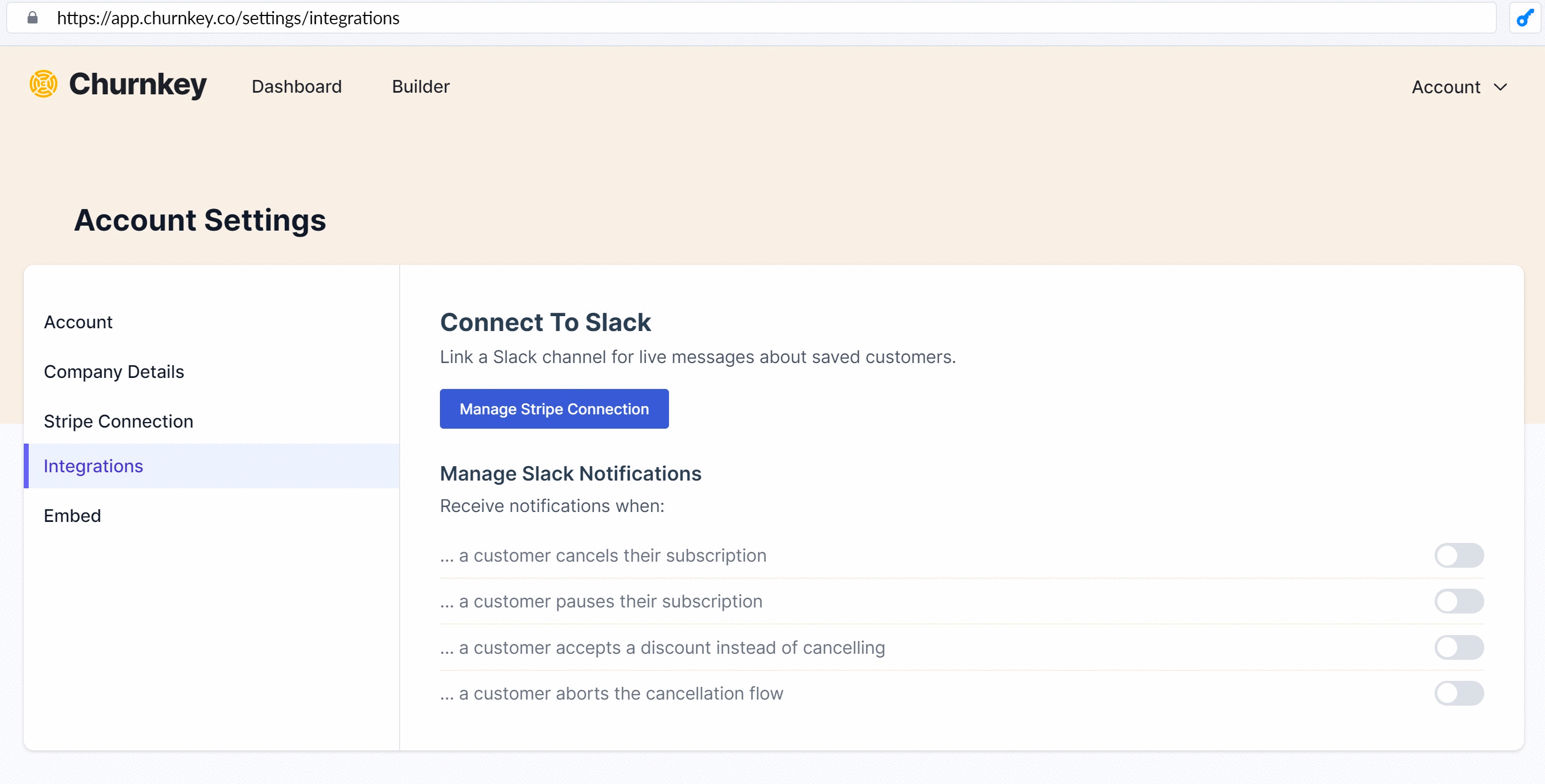
Set your notification preferences
Choose which session results you want to be sent to the previously designated Slack channel as notifications.
Stacked offers
When a customer accepts a stacked offer, the session message names both offers and says when the second one waits for a pause or trial to end, or that only part of the pair applied. If a second offer that waited later fails to apply, Churnkey posts a separate message for it. That message follows your notification preference for the first offer's result (for example Pause) and is sent for live sessions only.
Privacy Policy
You can view our Privacy Policy here: https://churnkey.co/legal/privacy-policy
Support
For support for the Churnkey App for Slack, please contact us at [email protected].