Cancel Links
A Cancel Link is a signed URL your backend mints by calling Churnkey's API. Each link is tied to a specific customer — and optionally a specific subscription — is single-use, and expires after a configurable window. When the customer visits the link, they're already authenticated, so there's no email verification step in between.
This is the cleanest hand-off when you already know who the customer is. The button in your account settings calls your server, your server calls Churnkey, and the customer gets dropped straight onto their cancel page.
Cancel Links are the recommended path when you have a logged-in customer in your app — for example, a "Cancel subscription" button in their account settings.
When to use Cancel Links vs Email Verification
Both paths land the customer on the same hosted cancel page. The difference is how you prove the customer is who they say they are.
Reach for Cancel Links when the customer is already logged into your app, you know their identifier in your billing provider, and your backend can make an outbound API call. Your server has already done the authentication work, so there's no reason to ask the customer to verify themselves again.
Reach for Email Verification when the customer arrives from outside your app — a link in an email, a reply from your support team, a button on your marketing site. There's no auth context to lean on, so you let the customer verify ownership of their email address before the flow begins.
You can use both at the same time. Many merchants generate Cancel Links from inside the product and let email verification cover everything else.
Step One: Get your API credentials
Navigate to Settings → Organization in the Churnkey dashboard and find the Cancel Flow API Keys section. You'll see two values: an App ID and an API Key.
Copy both into your backend's environment configuration. The App ID identifies your account and is safe to log; the API Key is a secret and should be treated like a password — it lives on your server, never in browser code, and should be rotated if it ever leaks.
If you operate in test mode and live mode separately, you'll find a key pair for each. Use the test pair when developing against test billing data, and the live pair for production.
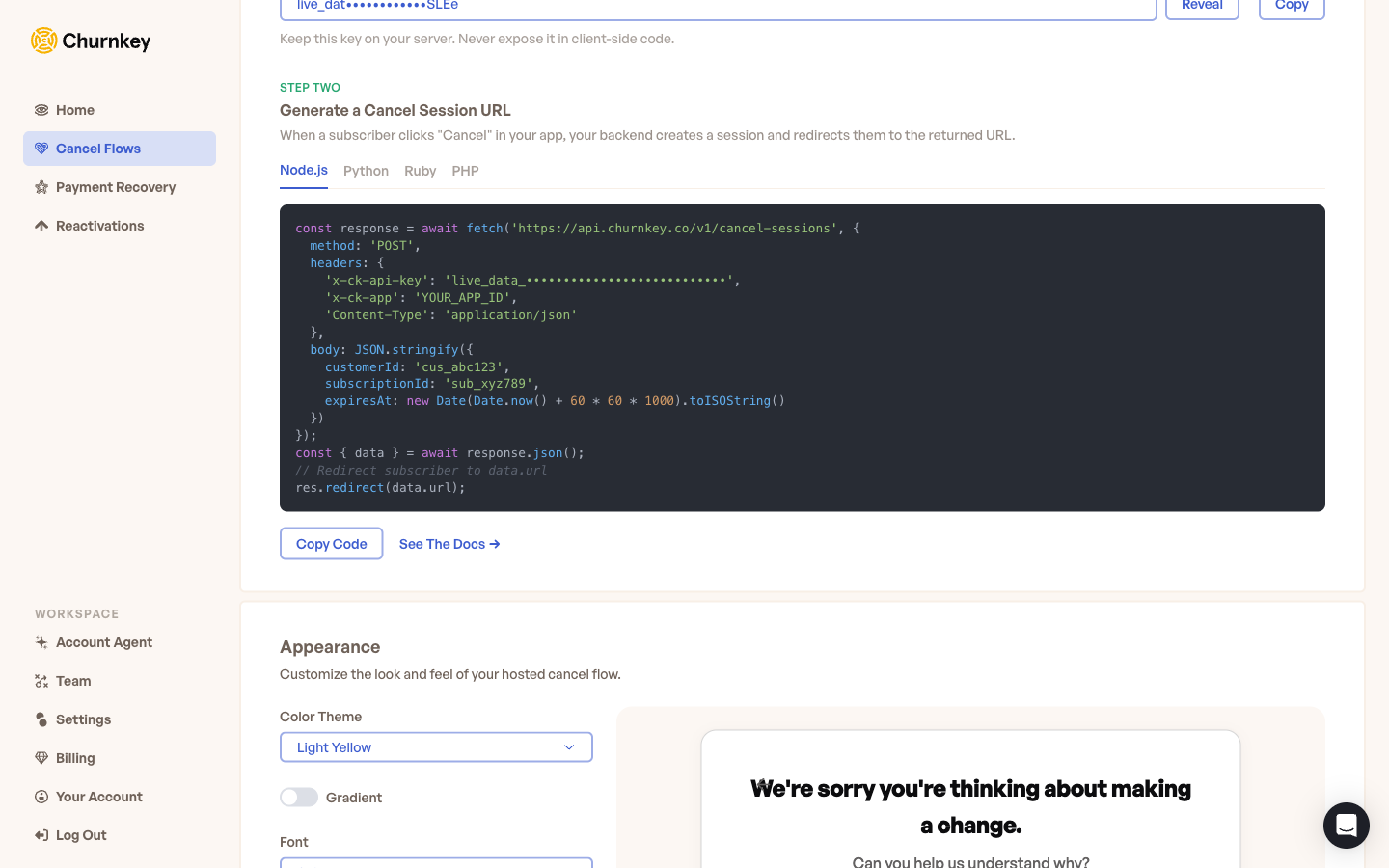
Step Two: Generate a Cancel Link from your backend
Your backend makes a single authenticated request:
POST https://api.churnkey.co/v1/cancel-sessions
Authenticate with two headers — both are required:
x-ck-app: YOUR_APP_ID
x-ck-api-key: YOUR_API_KEY
Content-Type: application/json
Send a JSON body with the customer details:
{
  "customerId": "cus_abc123",
  "subscriptionId": "sub_xyz789",
  "expiresAt": "2026-06-04T12:00:00Z"
}
Field by field:
customerId(required) — the identifier your billing provider uses for this customer. For Stripe that'scus_.... For Paddle, pass the subscription identifier here, because Paddle scopes everything around the subscription rather than a separate customer object.expiresAt(required) — an ISO 8601 timestamp telling Churnkey when this link should stop working. Compute this on your server before the call (for example, "now plus 24 hours"). Choose a window that suits your use case — backend code that immediately redirects the customer can be short, links sent in email may need longer.subscriptionId(optional) — narrows the flow to a single subscription when the customer has more than one. If you omit it and the customer has multiple active subscriptions, Churnkey will ask which one they want to cancel.
Churnkey returns the URL you'll send the customer to, alongside a few related fields:
{
  "url": "https://billing.churnkey.co/cancel/cl_abc123...",
  "token": "cl_abc123...",
  "expiresAt": "2026-06-04T12:00:00Z",
  "customerId": "cus_abc123",
  "subscriptionId": "sub_xyz789",
  "status": "active"
}
For most integrations you only need url. Cancel-link tokens use the cl_ prefix. You can hand the customer either the full url or build your own redirect using the token; the url is the simpler default.
The domain in url reflects the most branded option you have configured. If you have a custom domain set up, the link points there. Otherwise it falls back to your Churnkey subdomain, and finally to billing.churnkey.co. See How Churnkey picks the domain for a generated link for the full priority order.
Step Three: Redirect the customer
Once you have the URL, there are two common patterns for getting the customer there.
Server-side redirect is the cleanest option for traditional server-rendered apps. Your "Cancel subscription" button posts to an endpoint on your own server; that endpoint mints the Cancel Link and returns a redirect:
HTTP/1.1 302 Found
Location: https://billing.churnkey.co/cancel/cl_abc123...
The customer never sees the intermediate API response — they click, and a moment later they're on the cancel page.
Client-side redirect fits single-page apps where the cancel button is wired up in the browser. Your client calls your backend endpoint, gets the URL back, and navigates:
const response = await fetch('/api/cancel-link', { method: 'POST' });
const { url } = await response.json();
window.location.href = url;
Either way, the API Key never touches the browser. The browser talks to your server, and only your server talks to Churnkey.
Multi-language backend examples
Every example below makes the same POST /v1/cancel-sessions call. Pick the one that matches your stack.
const response = await fetch('https://api.churnkey.co/v1/cancel-sessions', {
  method: 'POST',
  headers: {
    'x-ck-app': process.env.CHURNKEY_APP_ID,
    'x-ck-api-key': process.env.CHURNKEY_API_KEY,
    'Content-Type': 'application/json',
  },
  body: JSON.stringify({
    customerId: 'cus_abc123',
    subscriptionId: 'sub_xyz789',
    expiresAt: new Date(Date.now() + 24 * 60 * 60 * 1000).toISOString(),
  }),
});

const { url } = await response.json();
// Redirect or return `url` to the client
import os, requests
from datetime import datetime, timedelta, timezone

response = requests.post(
    "https://api.churnkey.co/v1/cancel-sessions",
    headers={
        "x-ck-app": os.environ["CHURNKEY_APP_ID"],
        "x-ck-api-key": os.environ["CHURNKEY_API_KEY"],
        "Content-Type": "application/json",
    },
    json={
        "customerId": "cus_abc123",
        "subscriptionId": "sub_xyz789",
        "expiresAt": (datetime.now(timezone.utc) + timedelta(hours=24)).isoformat(),
    },
)

url = response.json()["url"]
require "net/http"
require "json"

uri = URI("https://api.churnkey.co/v1/cancel-sessions")
http = Net::HTTP.new(uri.host, uri.port)
http.use_ssl = true

request = Net::HTTP::Post.new(uri)
request["x-ck-app"] = ENV["CHURNKEY_APP_ID"]
request["x-ck-api-key"] = ENV["CHURNKEY_API_KEY"]
request["Content-Type"] = "application/json"
request.body = {
  customerId: "cus_abc123",
  subscriptionId: "sub_xyz789",
  expiresAt: (Time.now.utc + 24 * 60 * 60).iso8601,
}.to_json

url = JSON.parse(http.request(request).body)["url"]
<?php
$ch = curl_init('https://api.churnkey.co/v1/cancel-sessions');
curl_setopt_array($ch, [
    CURLOPT_POST => true,
    CURLOPT_RETURNTRANSFER => true,
    CURLOPT_HTTPHEADER => [
        'x-ck-app: ' . getenv('CHURNKEY_APP_ID'),
        'x-ck-api-key: ' . getenv('CHURNKEY_API_KEY'),
        'Content-Type: application/json',
    ],
    CURLOPT_POSTFIELDS => json_encode([
        'customerId' => 'cus_abc123',
        'subscriptionId' => 'sub_xyz789',
        'expiresAt' => gmdate('c', time() + 24 * 60 * 60),
    ]),
]);

$url = json_decode(curl_exec($ch), true)['url'];
package main

import (
    "bytes"
    "encoding/json"
    "net/http"
    "os"
    "time"
)

func generateCancelLink() (string, error) {
    body, _ := json.Marshal(map[string]string{
        "customerId":     "cus_abc123",
        "subscriptionId": "sub_xyz789",
        "expiresAt":      time.Now().Add(24 * time.Hour).UTC().Format(time.RFC3339),
    })

    req, _ := http.NewRequest("POST", "https://api.churnkey.co/v1/cancel-sessions", bytes.NewReader(body))
    req.Header.Set("x-ck-app", os.Getenv("CHURNKEY_APP_ID"))
    req.Header.Set("x-ck-api-key", os.Getenv("CHURNKEY_API_KEY"))
    req.Header.Set("Content-Type", "application/json")

    resp, err := http.DefaultClient.Do(req)
    if err != nil {
        return "", err
    }
    defer resp.Body.Close()

    var result map[string]string
    json.NewDecoder(resp.Body).Decode(&result)
    return result["url"], nil
}
Generating links from the Churnkey dashboard
You don't always need to write code. For one-off support cases — a customer emails in asking to cancel, your team wants to send them straight to the flow — you can generate a Cancel Link from the dashboard.
Navigate to Customers, open the customer in question, and click Generate Cancel Link. The dashboard mints the link with the same signing mechanism the API uses, applies your default expiration, and copies the URL to your clipboard. Paste it into your reply and the customer is one click away from the flow.
This is especially handy while you're still wiring up the backend integration — you can prove the experience works end-to-end before any code ships.
Single-use and expiration behavior
By default every Cancel Link is single-use. The first time a customer visits and the token is exchanged, Churnkey marks it consumed. If anyone — including the original customer — tries to use the same link again, it won't work. This is what keeps a link harmless if it ends up in a browser history, a screenshot, or a shared inbox after the fact.
If you have a specific reason for a reusable link (for example, a long-lived support workflow), the API and the Generate Cancel Link modal in the dashboard both expose a singleUse: false option. Use it sparingly — the security guarantee disappears the moment a link can be replayed.
The link also has a time limit. You set expiresAt explicitly on every API call (the body field is required), and the dashboard modal offers presets from 1 hour to 30 days. The Session link expiration setting under Cancel Flow → Hosted → Setup (default 24 hours, range 1 hour to 7 days) is the cap your dashboard-generated links default to.
If a customer hits a link that's already been used or has expired, they're not left at a dead end. Churnkey shows a friendly "link expired" screen with a clear path to start over through email verification, so the cancellation can still happen without your team getting involved.
Treat Cancel Links the way you'd treat password reset links. Anyone with the URL can act on the customer's subscription until the link is consumed or expires. Never log them, never embed them in URLs that get forwarded around, and never send them over channels you wouldn't trust with a password reset.
Webhooks
When a Cancel Link is created, exchanged, or consumed, Churnkey emits webhook events your backend can listen for. The most common pattern is to listen for the cancellation completion event and update your records — though for most use cases the cancellation already flows through your billing provider, so a dedicated webhook is optional. Wire one up if you want a single, Churnkey-sourced audit trail of every cancel-flow interaction.
Test mode
Cancel Links work the same way in test mode as they do in live mode. Use your test App ID and test API Key, and pass the customer identifier from your test billing-provider environment (a test-mode Stripe cus_..., for example).
Links minted with test credentials only resolve against test data, so you can mint, exchange, expire, and re-mint as much as you want without any risk to real customers. This is the right place to do your integration testing, your QA, and any manual walkthroughs before flipping production traffic over.
Appearance
Brand the hosted cancel page with a color theme, gradient style, and font that match your product — and preview every change live before you save.
Email Verification
Let any customer reach the hosted cancel page on their own — they enter their email, receive a verification code, and continue without any backend integration on your side.