Email Verification
Overview
When a customer visits your hosted cancel URL without a signed Cancel Link, Churnkey shows them an email-entry screen. The customer types in the email address tied to their account, we look that customer up in your billing provider, and we send a verification code to that address. Once the customer types the code back in, the cancel flow loads with their subscription already attached.
There is no backend code on your side. The moment you've enabled the Hosted Cancel Flow, Email Verification works out of the box.
This is the simplest possible integration. Share your hosted URL — over email, in your help center, on a "cancel my account" support page — and Churnkey handles authentication for you.
When to use Email Verification
Email Verification is the right fit when your customers reach the cancel page from outside your app. That includes links inside support emails, articles in your help center, or any unauthenticated page where the customer hasn't logged in. It's also the right choice when you don't want to (or can't) build the backend integration that powers Cancel Links right now, or when you simply want a self-service cancellation experience that works even when the customer can't log into your app.
For logged-in flows where you can sign a Cancel Link from your backend, pair this with Cancel Links. The two methods can live side by side — Cancel Links handle authenticated users, and Email Verification handles everyone else.
How customers experience it
The customer flow takes four steps from start to finish.
1. Land on the page. The customer visits https://billing.churnkey.co/cancel/<app-id>, or your configured subdomain or custom domain. Because no Cancel Link is present, the page shows the email-entry screen instead of jumping straight into the flow.
2. Enter their email. They type the email address tied to their account in your billing provider.
3. Receive a code. Churnkey looks up that customer in your billing provider by email and sends a six-digit verification code to that address. The lookup is rate-limited to prevent abuse. If no matching customer is found, an error is shown — at the moment this error returns the submitted email address in the response, so don't rely on the lookup endpoint for privacy guarantees against active enumeration.
4. Verify and continue. The customer types the code back into the page. Once verified, the cancel flow loads with their subscription pre-loaded, and they continue through offers and the cancellation experience like any other customer.
When a verified customer has more than one active subscription, Churnkey shows a subscription picker right after verification so they can choose which one they want to cancel.
Sending verification emails from your own domain
By default — and this is what happens out of the box, before you do anything — verification codes are sent from [email protected] with the sender name "Churnkey Account" and the subject "One-Time Verification Code". Customers see Churnkey as the sender, not your brand.
This default works the moment Hosted Cancel Flow is enabled. You don't need to configure anything to start receiving verification emails — the fallback is always in place. For a more branded experience, you can verify a sender domain of your own so emails come from [email protected] (or any address on a domain you control) instead.
Sender domains are configured globally for your account under Settings → Email in the Churnkey dashboard.
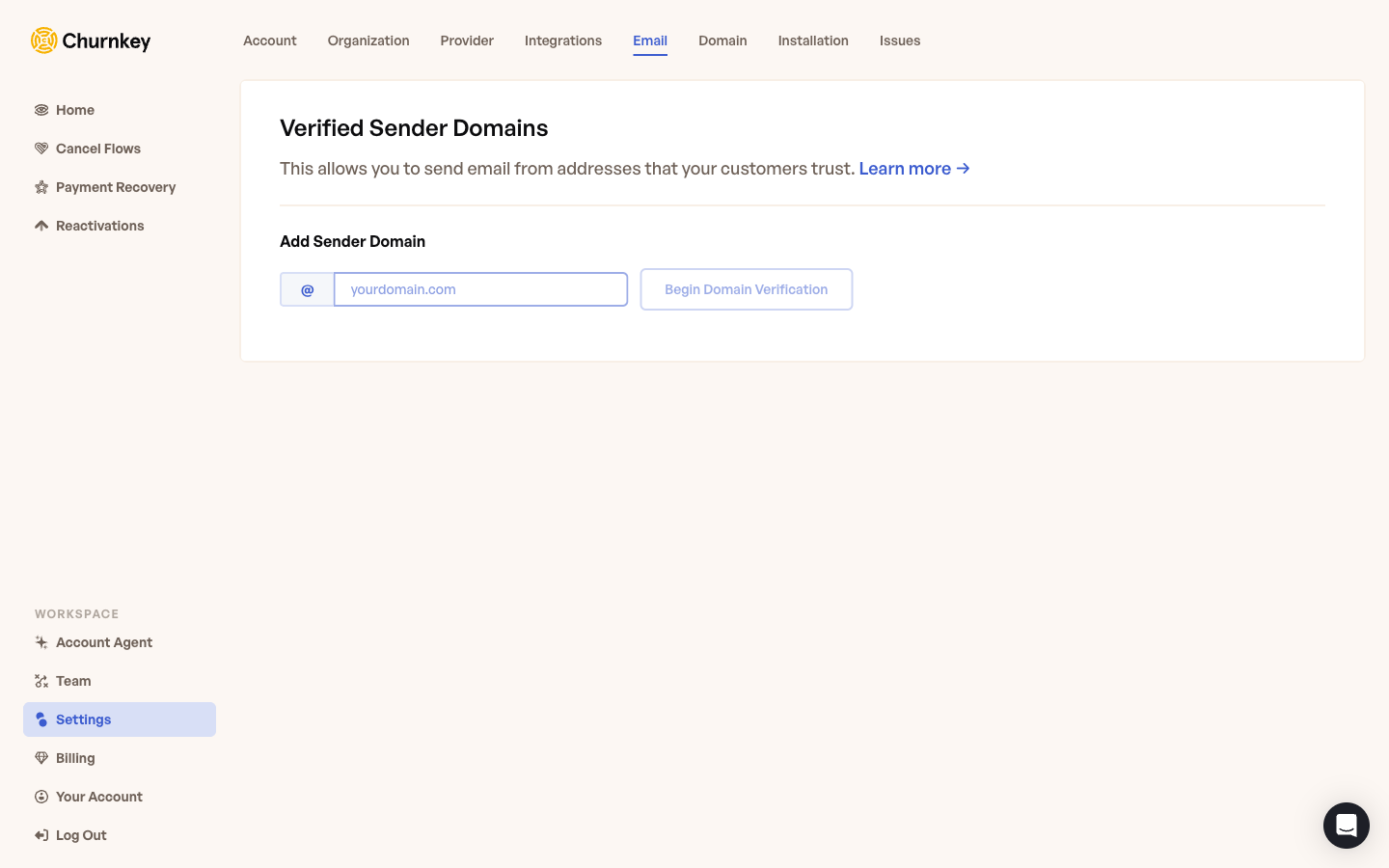
To add a sender domain:
- Click Add Sender Domain and enter the domain you want to send from (for example,
yourcompany.com). - Churnkey provides DNS records you need to add to that domain — typically SPF, DKIM, and DMARC entries that prove you own it and authenticate the messages.
- Once those records propagate, click Begin Domain Verification to confirm. The domain shows a Verified badge when it's ready.
- From that point on, verification emails are sent from an address on your verified domain, so customers see your brand in their inbox instead of Churnkey's.
For deeper email content customization — including bespoke subject lines, sender names, and body copy — reach out to Churnkey support. The team can help configure these on your account.
Code expiration and rate limiting
By default, verification codes expire 10 minutes after they're sent. You can adjust this anywhere between 5 and 30 minutes under Cancel Flow → Hosted → Setup. If a customer's code expires before they enter it, they can request a fresh one from the same screen. Codes are always 6 digits.
The email-lookup endpoint is rate-limited so attackers can't use it to enumerate which emails exist in your billing provider, and so they can't flood your customers with verification emails. Legitimate customers won't hit these limits in normal use.
What happens after verification
Once the code is verified, the customer is treated as authenticated for the rest of that session. The cancel flow loads exactly as it does for any other entry point — they step through your retention offers, see your cancellation reasons, and complete (or abandon) the flow.
When they finish, they're either redirected to the Return URL you configured during setup, or — if no Return URL is set — they see a confirmation screen for about 10 seconds before redirect.
If verification emails aren't arriving, check the customer's spam folder first and confirm the sender domain isn't being blocked by their email provider. If you're using a verified sender domain, double-check that the SPF, DKIM, and DMARC records you added are all resolving — that's the single most common reason emails get filtered.
Testing email verification in test mode
You can fully exercise Email Verification before going live by switching to test mode in the Churnkey dashboard. Visit your hosted URL with ?mode=test appended, or use the test-mode toggle from the dashboard. Then enter the email of a test customer in your billing provider's sandbox environment. The verification code will be sent to that test customer's email address exactly as it would in production, so you can confirm deliverability, copy, and branding all look correct before you start sharing the link with real customers.
Cancel Links
Generate signed, single-use URLs from your backend so logged-in customers land directly on their personal cancel-flow page.
Customer Data Endpoint
Pass dynamic customer attributes — plan, usage, tenure, support history — to the Hosted Cancel Flow so you can target offers and route based on the customer's full context.