Structured Follow-Up Questions
When a customer selects "Too Expensive" as their cancellation reason, do you know whether they mean they are not seeing ROI, their company cut budgets, or the price is simply too high? Each of those situations calls for a different retention strategy, yet a single survey choice treats them all the same. Structured Follow-Up Questions solve this by adding a second screen of predefined options after the primary cancellation survey, so you can capture the real reason and respond with the right offer.
Overview
Structured Follow-Up Questions extend the Cancellation Survey step in your cancel flow. After a customer selects a primary cancel reason, they see a second screen that presents a set of specific follow-up options you define. Each follow-up option can carry its own retention offer: a discount, a pause, a plan change, or any other offer type your flow supports.
The result is a two-level feedback loop:
- Level 1 tells you the general category, such as "Too Expensive"
- Level 2 tells you the precise situation, such as "Not seeing enough ROI"
- The offer matches that precise situation: a 30% discount to buy more time
This matters because retention offers perform significantly better when they match the customer's actual problem. A customer whose company cut budgets is unlikely to respond to a discount the same way as a customer who simply finds the price too high relative to value. Structured follow-ups give you the specificity to make that distinction and act on it.
How Follow-Up Questions Work in the Customer Experience
To understand the configuration, it helps to see what the customer actually sees. Here is the complete flow from the customer's perspective. The screenshots below show one example configuration; your survey questions, choices, and follow-up options will reflect whatever you set up in the builder.
Step 1: Primary Survey
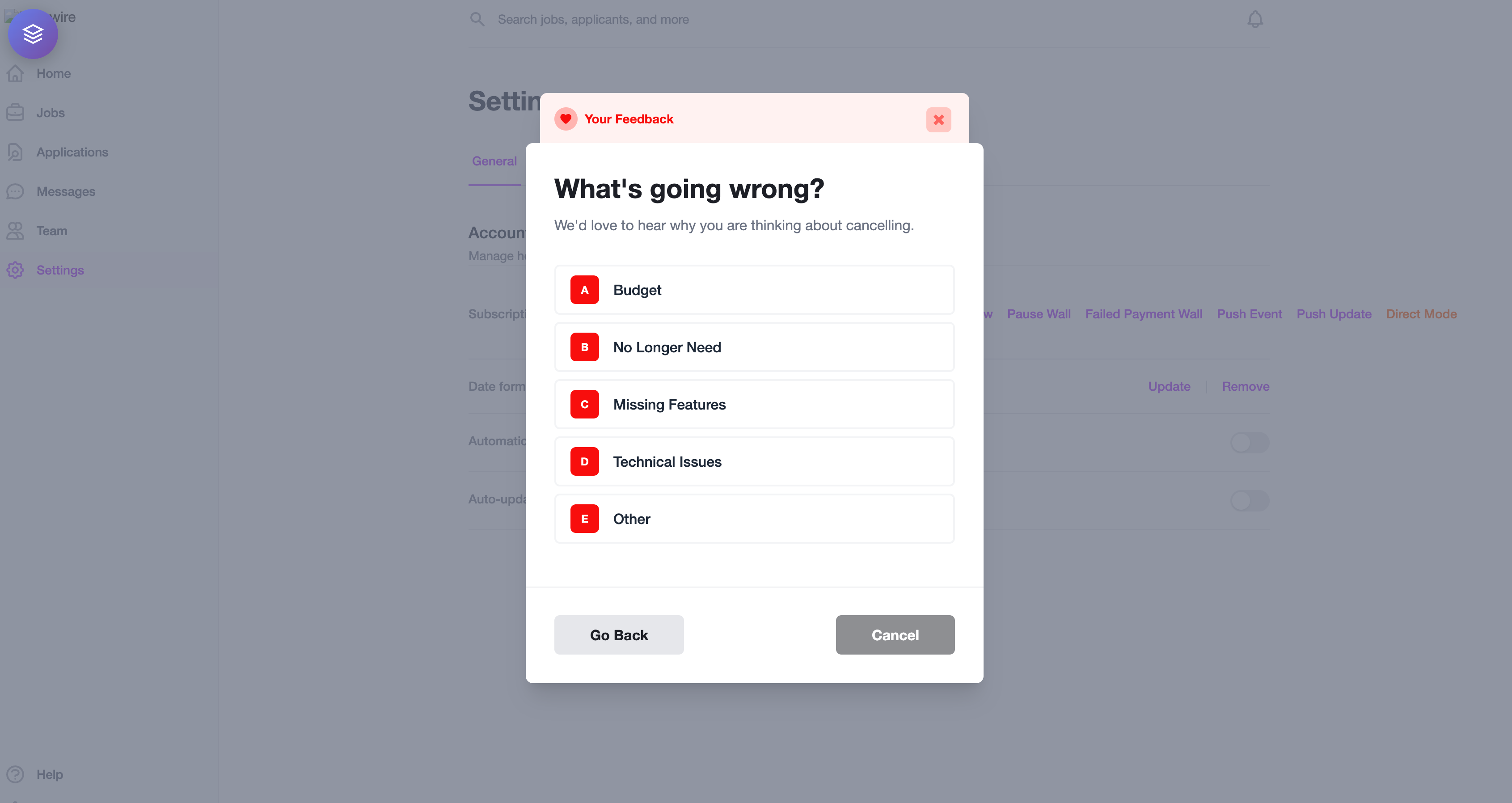
The customer clicks "Cancel Subscription" in your product and enters your cancel flow. When they reach the Cancellation Survey step, they see the primary question, for example "What's going wrong?", with the options you have defined (Budget, No Longer Need, Missing Features, Technical Issues, and so on).
The customer selects "Budget", and the form immediately advances to the next screen.
Step 2: Follow-Up Question
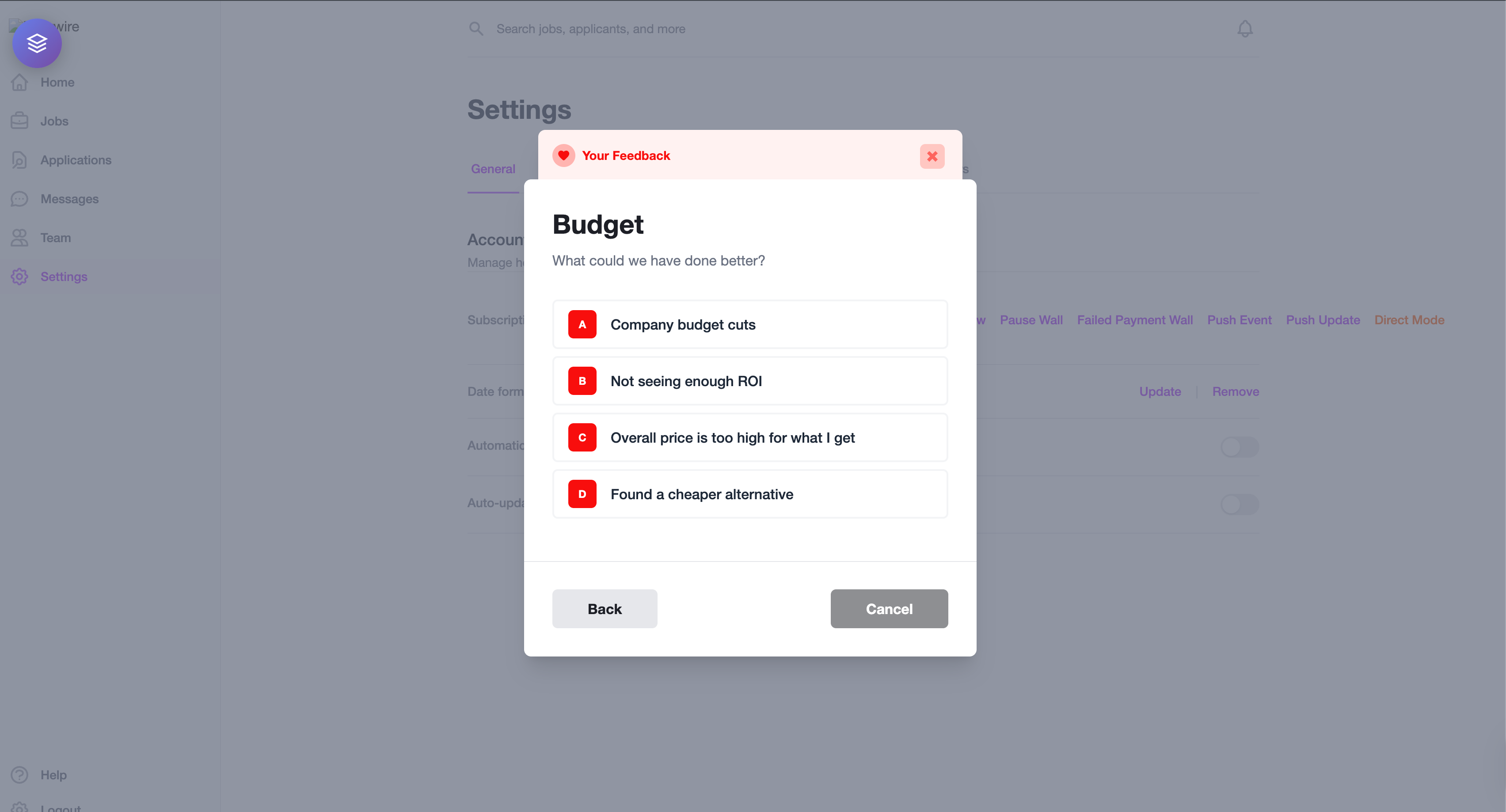
Instead of moving directly to the next step in your flow, the customer now sees a second screen titled with their selected answer, "Budget." Below the title, a follow-up question specific to that reason appears. In this case, the question "What could we have done better?" is shown with options like:
- Company budget cuts
- Not seeing enough ROI
- Overall price is too high for what I get
- Found a cheaper alternative
Step 3: Targeted Offer
The customer selects one of these options and continues. If you associated an offer with that particular follow-up option, they see it next. If you did not, the flow proceeds to the next configured step as usual.
Throughout this process, the customer can navigate back to the primary survey screen if they want to change their initial selection. An optional freeform text input can appear alongside the structured options, giving customers the ability to elaborate in their own words while still selecting a predefined category.
The Question Cascade
The Question Cascade is the branching logic that powers structured follow-ups. Each primary survey choice can branch into its own set of follow-up options, and each follow-up option can trigger a different retention offer. The result is a tree of paths where one initial question expands into highly specific outcomes.
The table below walks through three primary survey choices and shows how each one branches into follow-up options with targeted offers.
| Primary Reason | Follow-Up Question | Follow-Up Option | Retention Offer |
|---|---|---|---|
| Budget | "What could we have done better?" | Company budget cuts | Pause 3 Months |
| Not seeing enough ROI | 30% Discount | ||
| Overall price is too high for what I get | Hidden Plan | ||
| Found a cheaper alternative | 40% Discount | ||
| Missing Features | "Which feature matters most?" | API Access | Switch Subscription |
| Mobile App | Trial Extension | ||
| SSO / SAML | No offer | ||
| Other | Freeform text input only. The customer types their reason in their own words | No offer | |
Notice how "Budget" branches into four distinct paths, each with a different retention strategy. A customer dealing with company budget cuts needs a pause, not a discount. A customer who found a cheaper alternative needs a bigger discount, not a hidden plan. One extra question yields dramatically better offer targeting.
The same principle applies to "Missing Features." Knowing the customer wants API access, where you can offer a switch to a plan that includes it, rather than SSO, where no relevant offer is available, makes the difference between a relevant retention attempt and a wasted one.
Response Type Modes
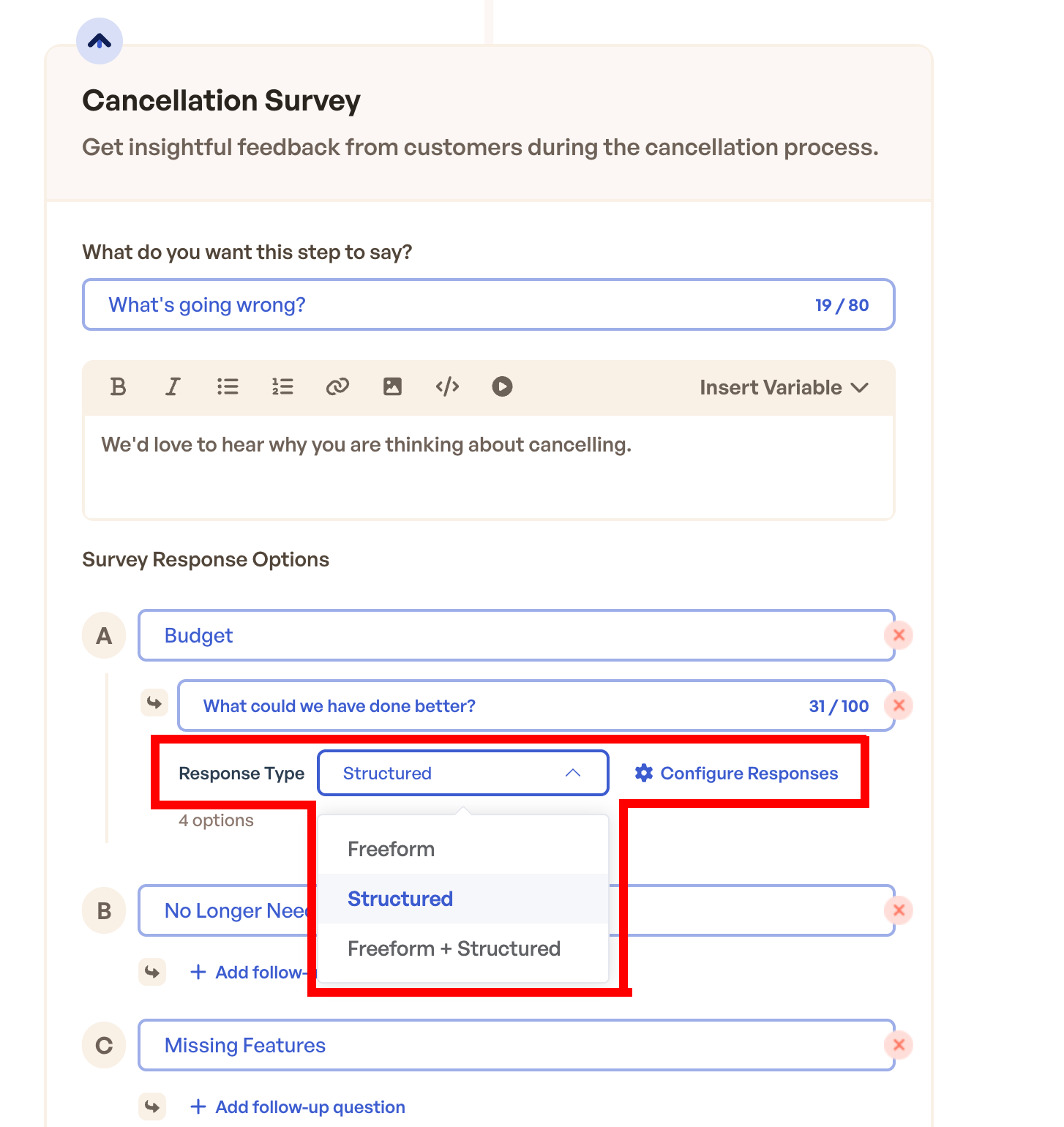
Each survey choice in your Cancellation Survey can be configured with one of three follow-up response types. The mode you choose determines what the customer sees after selecting that primary reason.
Freeform
The existing behavior. The customer sees only a text input field where they can type a response in their own words. No structured options are presented. This mode works well for survey choices where the range of possible reasons is too broad to anticipate, such as "Other" or "Something else".
Structured
A set of predefined radio button options with no text input. The customer must select one of the options to continue. This mode is ideal when you have a clear understanding of the specific sub-reasons within a category and want clean, categorized data for analysis and offer targeting.
Freeform + Structured
Combines both. The customer sees the predefined options and a text input field. They can select a structured option, type freeform text, or do both. This is the most flexible mode and works well when you want categorized data but also want to capture unexpected feedback. The label on the freeform input field is configurable, so you can prompt the customer with something specific like "Tell us more about your situation" rather than a generic placeholder.
Setting Up Structured Follow-Up Questions
Accessing the Configuration
- Navigate to Cancel Flows in your Churnkey dashboard
- Open the Builder for the cancel flow you want to edit
- Select the Survey step in your flow
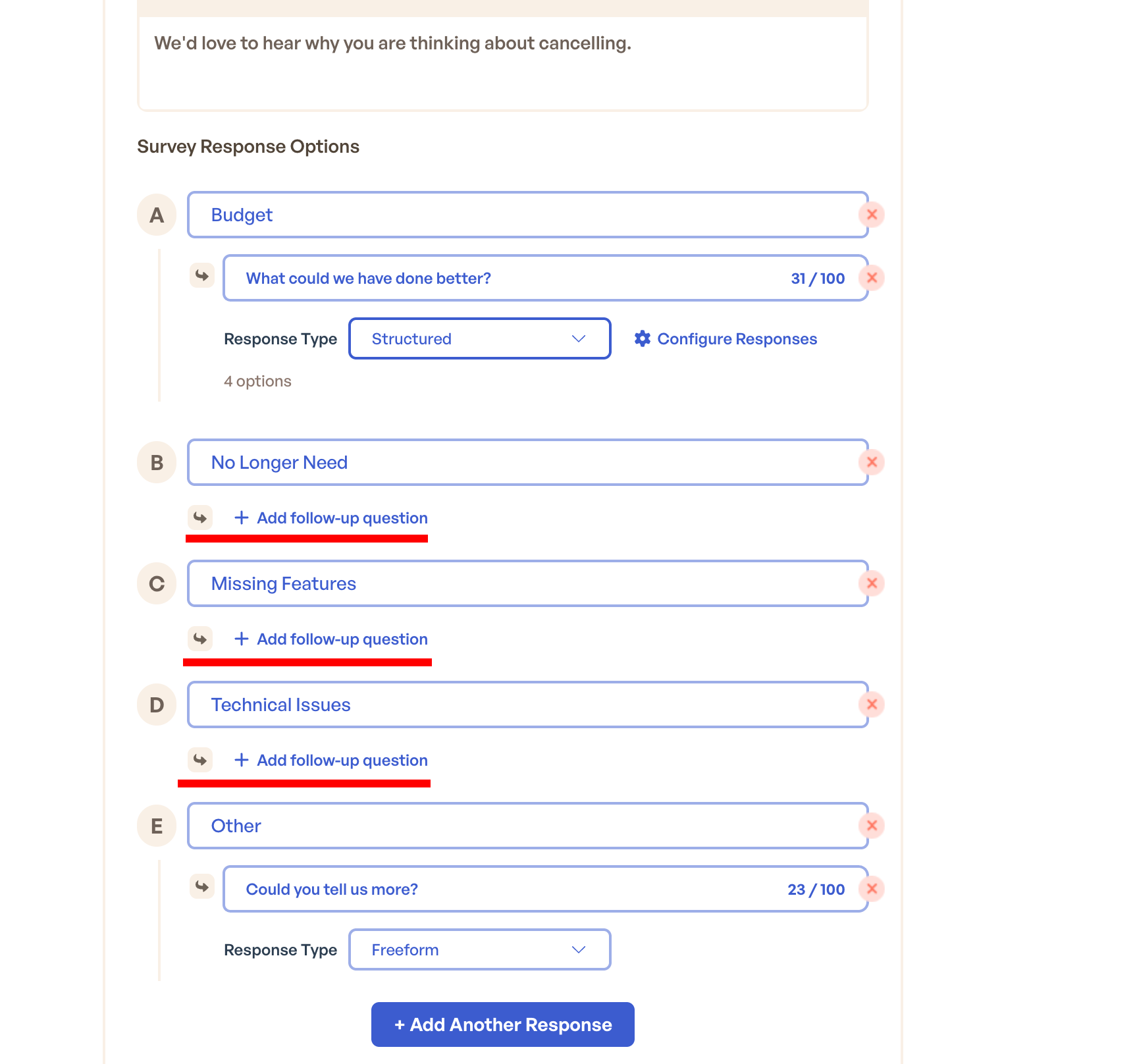
You will see the list of survey choices you have already configured. Each choice now displays an "Add follow-up question" button.
Adding Follow-Up Options to a Survey Choice
Click the "Add follow-up question" button on the survey choice you want to enhance. A configuration panel opens where you set up the follow-up.
Select the response type. Choose between Freeform, Structured, or Freeform + Structured. If you select Structured or Freeform + Structured, the panel expands to show the options editor.
Add your follow-up options. Type the text for each option. Each option appears as a radio button in the customer-facing follow-up screen. You can add, remove, and reorder options by dragging them into position. The order you set here is the order the customer sees.
Configure the freeform label (Freeform + Structured mode only). Set the placeholder text or label that appears on the text input field alongside the structured options.
Save your changes. The follow-up is now attached to that survey choice.
Repeat this process for each survey choice where you want a structured follow-up. You do not need to add follow-ups to every choice. Survey choices without a follow-up continue to work exactly as before; the customer selects the choice and moves to the next step in the flow.
Associating Offers with Follow-Up Options
This is where the feature delivers its full value. Instead of mapping one offer to one survey choice, you can now map different offers to different follow-up options within the same survey choice.
- In the Cancel Flow Builder, switch to the Offer Builder tab
- Select the survey choice that has follow-up options configured
- The interface expands to show each follow-up option with its own offer editor
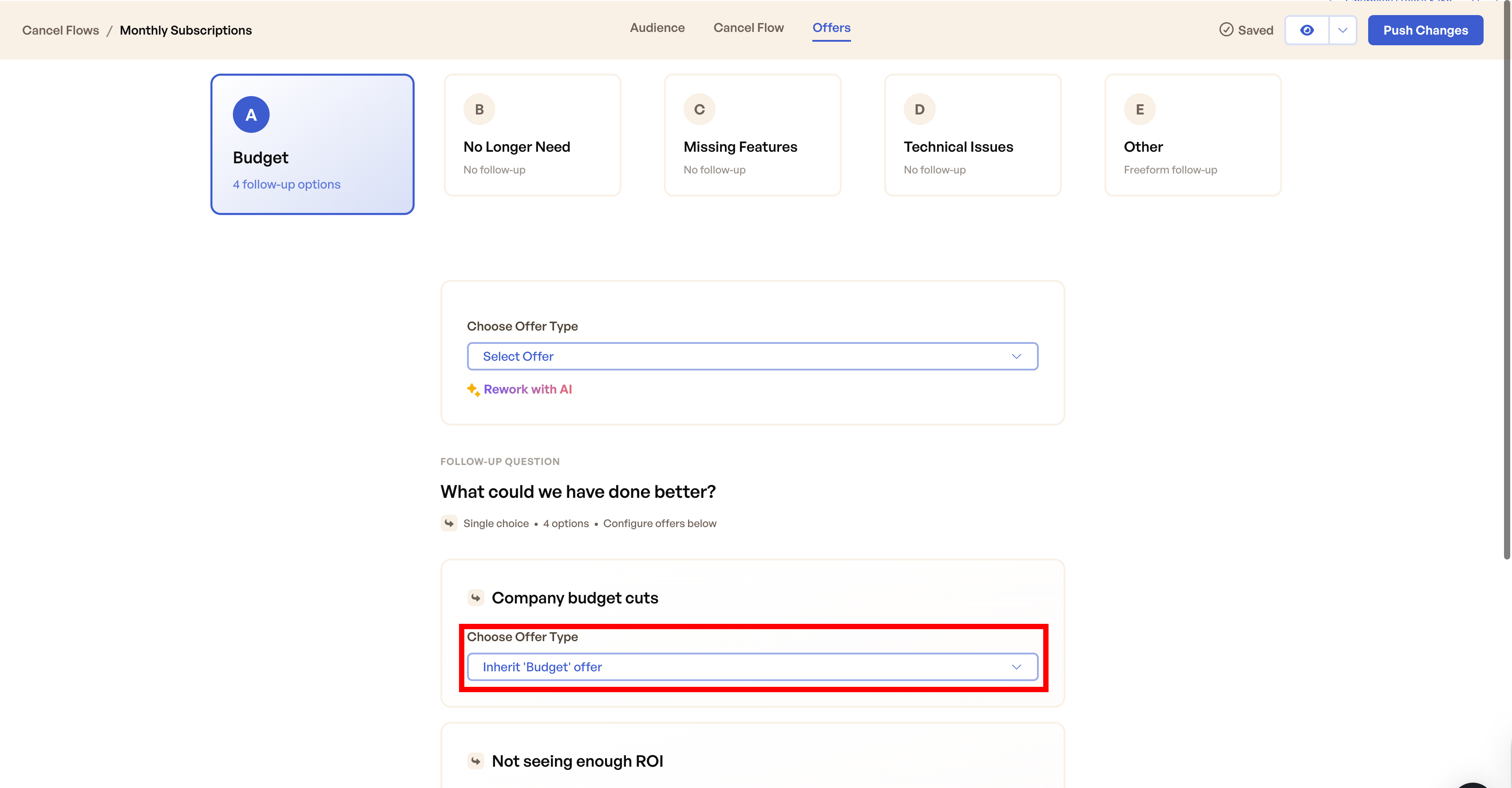
For each follow-up option, you can assign any offer type supported by your flow:
| Offer Type | Best For | Example |
|---|---|---|
| Discount | Price sensitivity, ROI concerns | 30% off for 3 months |
| Pause Subscription | Temporary circumstances, budget freezes | 2-month payment pause |
| Switch Plan | Feature mismatch, over-provisioning | Downgrade to a lower tier |
| Trial Extension | Not enough time to evaluate | 14-day extension |
| Contact Us / Custom Redirect | Complex issues needing human conversation | Route to support team |
You do not need to assign an offer to every follow-up option. If a follow-up option has no associated offer, the customer proceeds to the next step in the flow after making their selection.
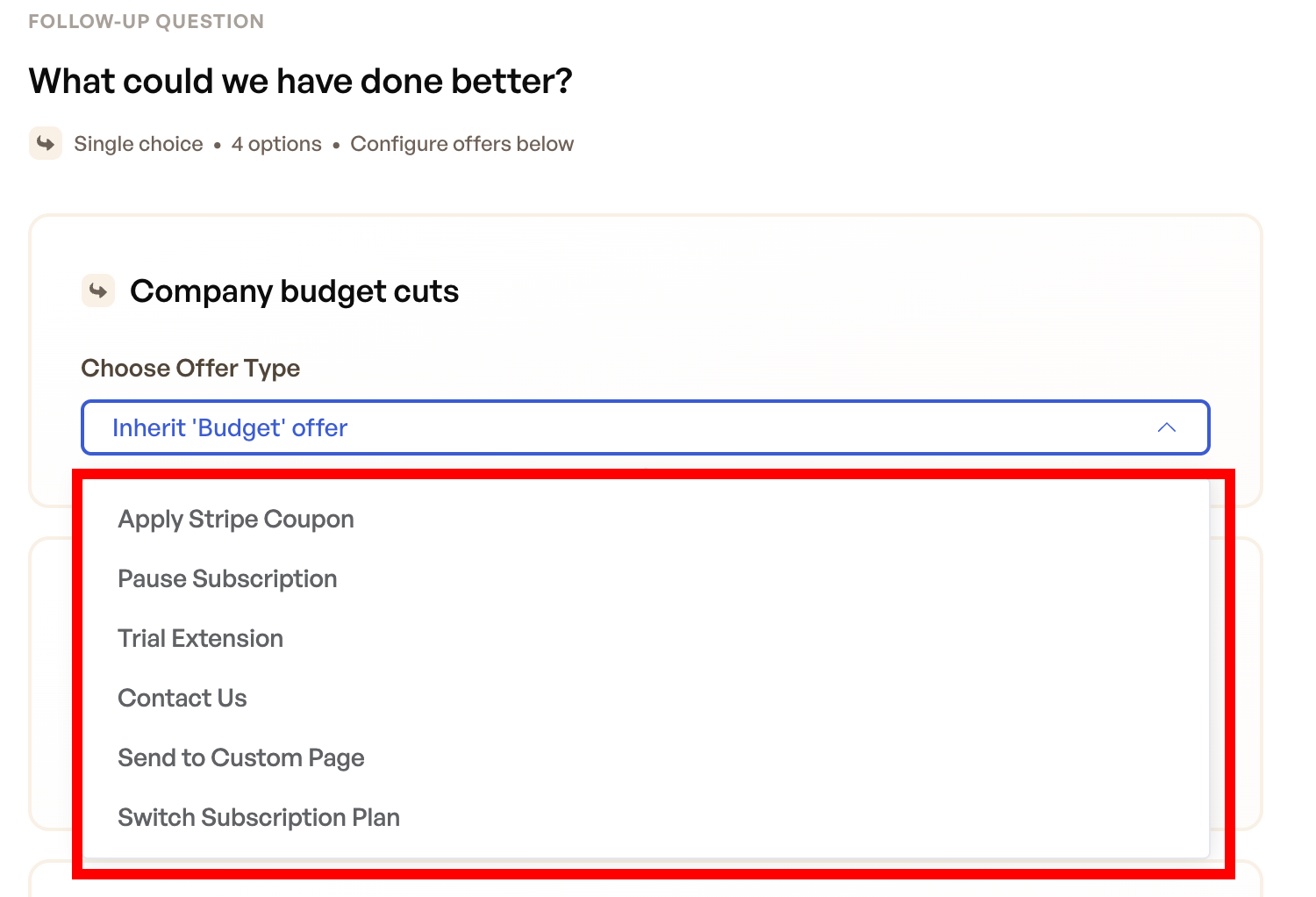
Important: Follow-up option offers take priority over parent choice offers. If you assign an offer to both a primary survey choice and its follow-up options, the follow-up option's offer will be shown instead of the parent choice's offer. When using structured follow-ups, configure your offers on the individual follow-up options rather than on the parent choice to ensure each path triggers the intended offer.
Worked Example: "Too Expensive" with Targeted Offers
Suppose your cancel flow survey includes a "Too Expensive" choice. Here is how you might configure the structured follow-up:
Primary survey choice: Too Expensive
Follow-up options and their associated offers:
| Follow-Up Option | Offer Type | Offer Details | Rationale |
|---|---|---|---|
| Not seeing enough ROI | Discount | 30% off for 3 months | Give the customer time to discover value at a lower cost |
| Company budget cuts | Pause | 2-month pause | Accommodate temporary financial constraints without losing the account |
| Overall price is too high | Plan Change | Switch to a lower-tier plan | Retain the customer at a sustainable price point |
| Found a cheaper alternative | Discount | 40% off for 2 months | Compete on price to keep the customer while demonstrating value |
With this configuration, a customer who selects "Too Expensive" and then "Company budget cuts" sees a pause offer. A different customer who selects "Too Expensive" and then "Not seeing enough ROI" sees a discount. The primary survey choice is the same, but the retention strategy is tailored to the actual situation.
Analyzing Follow-Up Response Data
Structured Follow-Up Questions generate a new layer of data in your cancel flow analytics. Two dedicated visualizations help you understand how customers move through the survey and what their responses mean for your revenue.
Response Flow
The Response Flow is a Sankey diagram that visualizes the relationship between primary survey choices and their follow-up selections. Navigate to Cancel Flows > Analytics to find this visualization.
The left side of the diagram shows your primary survey choices. The right side shows the follow-up options selected by customers. Colored flows connect each primary choice to its follow-up selections, with the width of each flow proportional to the number of responses.
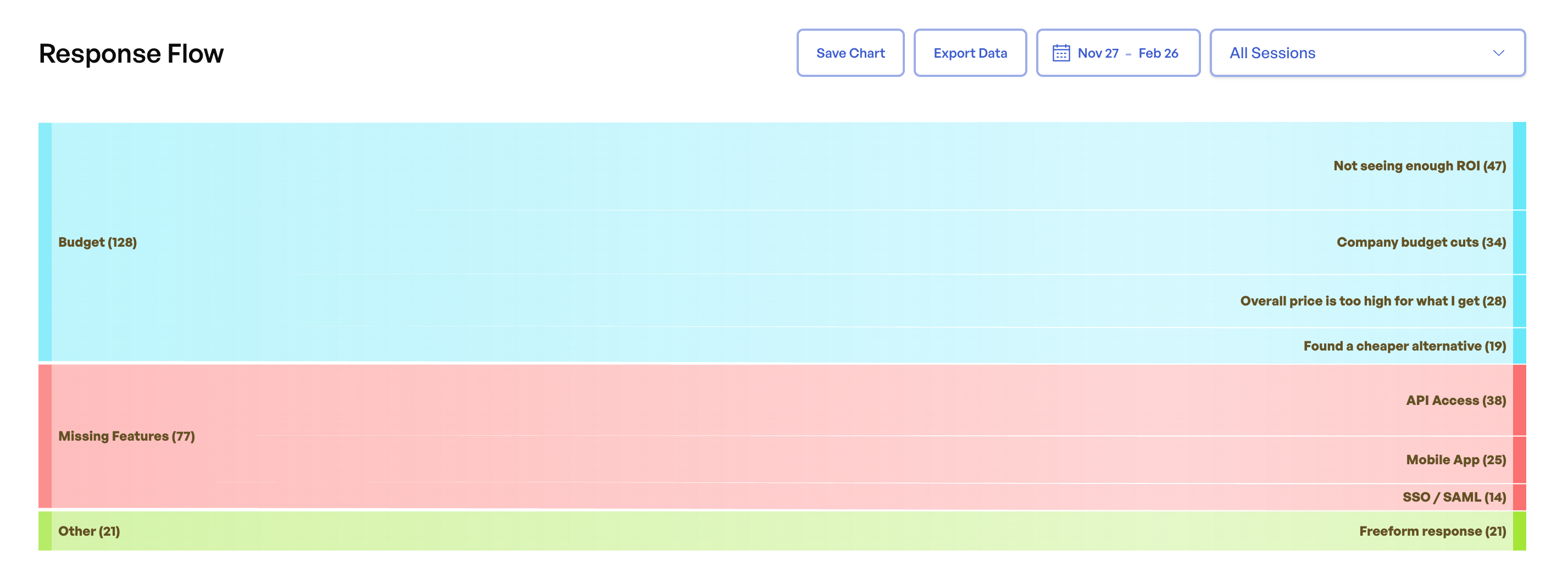
Hover over any flow to see a tooltip with the response count, the percentage of total responses that path represents, and the associated MRR (Monthly Recurring Revenue). This tells you not just how many customers follow a particular path, but how much revenue those customers represent.
The Response Flow answers a key question: where are your customers going after they pick a primary reason? If 60% of "Too Expensive" respondents select "Not seeing enough ROI", that tells you the problem is not your price, it is your value communication. The flow diagram makes this pattern immediately visible.
Export options: Download the visualization as a PNG image for presentations, or export the underlying data as a CSV file for further analysis in a spreadsheet. See the full Response Flow documentation for detailed guidance on reading and using this diagram.
Response Explorer
The Response Explorer provides a Treemap visualization that shows the distribution of follow-up responses across all your survey choices. Each cell in the treemap represents a unique follow-up option, sized by either response count or MRR impact.
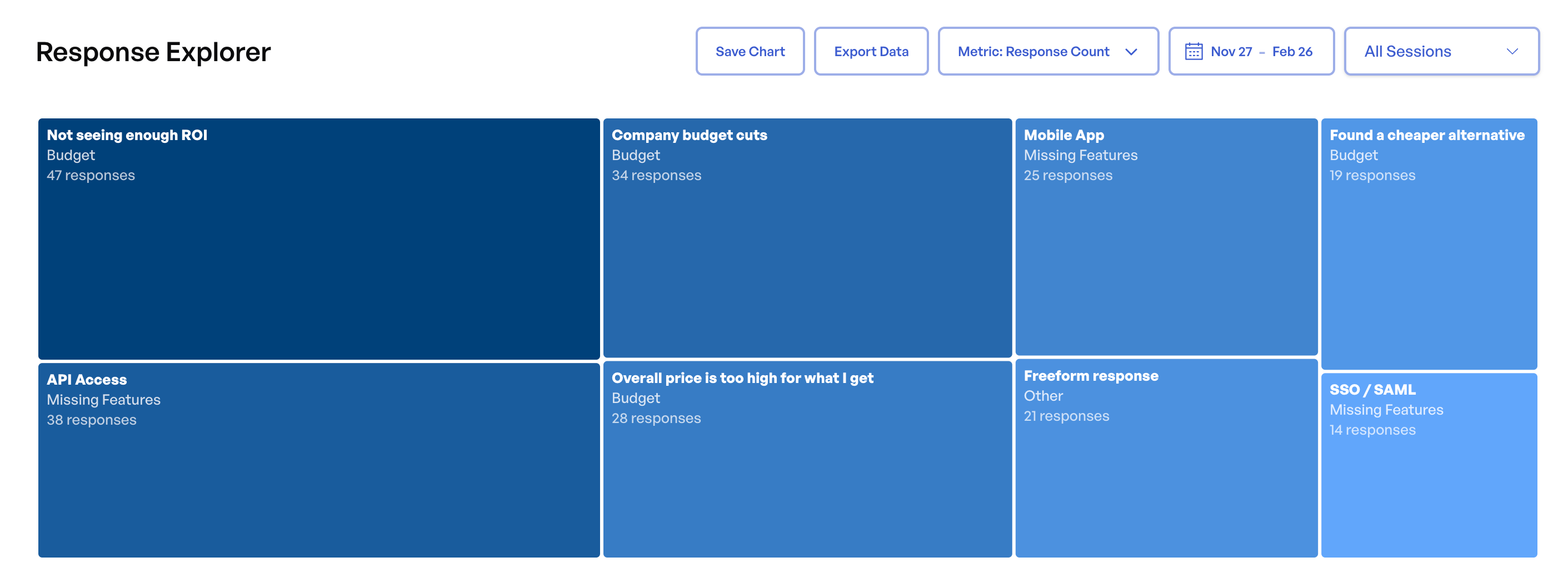
Toggle between views. Use the toggle at the top of the visualization to switch between Response Count (how many customers selected each follow-up option) and MRR Impact (the total monthly recurring revenue represented by customers who selected each option). These two views often tell different stories. A follow-up option with a modest response count might represent a disproportionately large share of MRR if it is selected by higher-value customers.
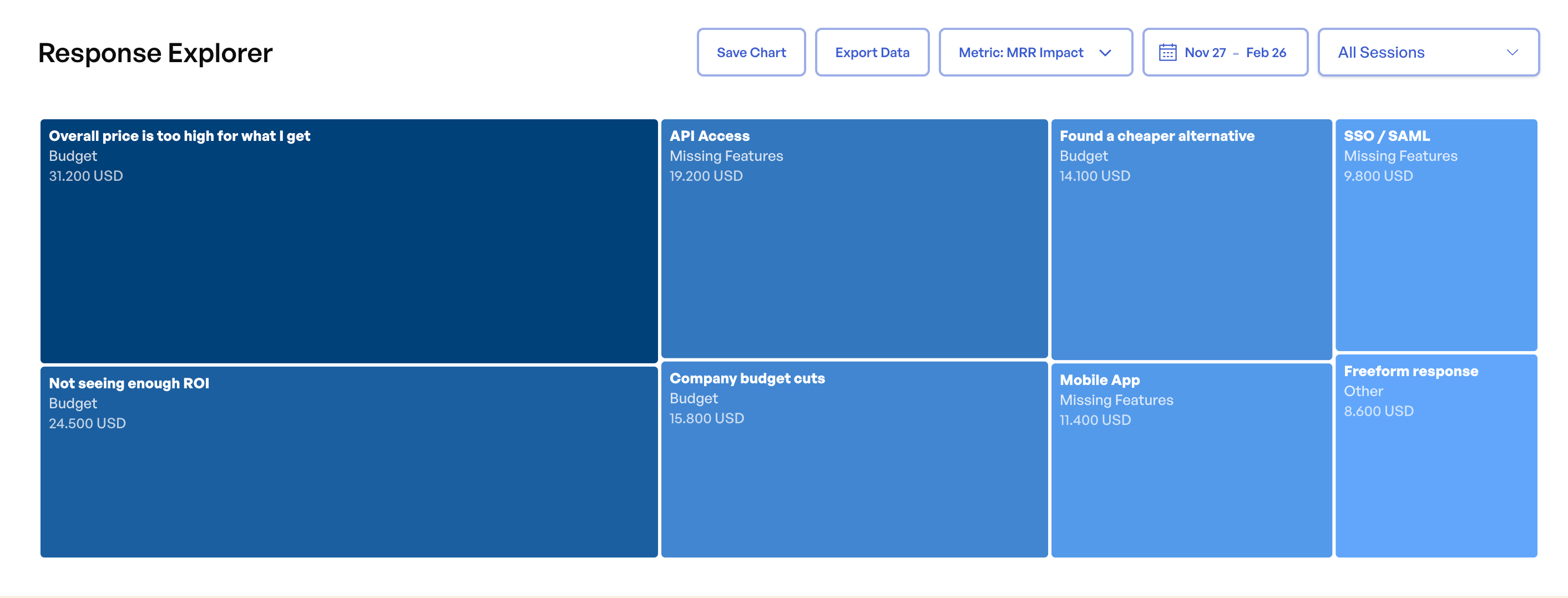
Drill down into individual responses. Click any cell in the treemap to open a detailed drill-down modal. Inside the modal, you will find:
Trend chart. A line chart showing how the response count for that follow-up option has changed over time. Use this to spot emerging trends. A sudden spike in "Company budget cuts" might correlate with a macroeconomic event or a change in your pricing.
Search and filter. Search across responses, questions, or customer email addresses to find specific entries.
Sorting options. Sort individual response records by newest first, oldest first, highest MRR, or lowest MRR. Sorting by MRR is particularly useful when you want to prioritize outreach to the customers whose retention has the greatest revenue impact.
Individual response cards. Each card shows the customer's email, their primary survey selection, their follow-up selection, their subscription details, and the MRR at risk. This gives you everything you need to understand a single customer's situation or to follow up with a personalized outreach.
Export: Download the Response Explorer data as a CSV file for deeper analysis or integration with other tools. See the full Response Explorer documentation for detailed guidance on workflows and analysis techniques.
Best Practices
Designing Effective Follow-Up Options
Keep your list to 3-6 options per survey choice. Fewer than three options provides little added value over a single survey choice. More than six creates decision fatigue and slows the cancellation flow down, which can frustrate customers and reduce completion rates. If you find yourself writing more than six options, consider whether some of them could be consolidated or whether the primary survey choice is too broad.
Make each option specific and actionable. A good follow-up option tells you something you can act on. "Not seeing enough ROI" is actionable: you can respond with a discount to buy more time, or with an onboarding session to demonstrate value. "Just not working for me" is not actionable because it does not tell you what to fix or what to offer. Write options that connect to specific retention strategies or product improvements.
Use "Freeform + Structured" for your most important survey choices. Your top two or three most-selected survey choices deserve the richest data collection. Structured options give you clean categories for analysis and offer targeting. The freeform input catches reasons you did not anticipate. Together, they ensure you are never missing critical feedback.
Write follow-up options from the customer's perspective. Use first-person language that mirrors how customers think about their situation. "My team is not using it enough" resonates more than "Low team adoption" because it matches the customer's internal narrative. This improves selection accuracy and makes the experience feel more empathetic.
Targeting Offers Strategically
Associate offers with your most common follow-up responses first. Check your analytics after the first two weeks to see which follow-up options are selected most frequently. Assign offers to those first, then work down the list. There is no need to assign offers to every option on day one.
Match the offer type to the follow-up reason. A discount addresses price sensitivity. A pause addresses temporary situations. A plan change addresses feature mismatch or over-provisioning. A support redirect addresses confusion or unresolved issues. When the offer type matches the stated problem, acceptance rates increase because the customer feels understood.
Reserve your strongest offers for high-MRR follow-up paths. Use the Response Explorer's MRR Impact view to identify which follow-up paths represent the most revenue at risk. Allocate your most generous offers, such as larger discounts, longer pauses, and exclusive plans, to those paths. The ROI of saving a $500/month customer justifies a more aggressive offer than saving a $15/month customer.
Place offers on follow-up options, not on parent choices. When a survey choice has structured follow-up options, offers configured on the individual follow-up options always take priority over an offer on the parent survey choice. For the clearest behavior, configure your offers on the follow-up options directly.
Reviewing and Iterating
Review the Response Flow weekly during the first month. The Sankey diagram reveals patterns quickly. You might discover that a follow-up option you expected to be popular is rarely selected, or that an option you did not prioritize is attracting high-MRR customers. These insights should drive both your offer assignments and your follow-up option wording.
Use the MRR Impact view in Response Explorer to prioritize action. Response count shows breadth of an issue. MRR Impact shows its financial significance. A follow-up option selected by 5% of respondents might still represent 20% of churning MRR. Always check both dimensions before deciding where to invest effort.
Refine your follow-up options quarterly. Customer behavior and language shift over time. Options that were highly relevant six months ago may become less so as your product, pricing, or market evolves. Review the data, retire options that no longer attract meaningful selections, and add new ones that reflect emerging patterns from your freeform responses.
Compatibility
Structured Follow-Up Questions work with all existing cancel flow features:
- Multi-language support. Follow-up options can be translated alongside your primary survey choices through the same translation workflow.
- Customer segments. Each segment's cancel flow can have its own set of follow-up options tailored to that audience.
- A/B tests. Each variant of the flow can test different follow-up configurations independently.
- All offer types. Discounts, pauses, plan changes, trial extensions, contact forms, and custom redirects are all supported on follow-up options.
- All billing providers. Works with Stripe, Chargebee, Braintree, Paddle Billing, and Maxio.
Frequently Asked Questions
Do I need to add follow-up questions to every survey choice?
No. Follow-up questions are optional per survey choice. You can add them to only the choices where deeper specificity improves your retention strategy. Survey choices without a follow-up continue to work exactly as they do today.
Can a follow-up option have the same offer as the primary survey choice?
Yes. If you want a follow-up option to present the same offer that was previously mapped to the primary choice, you can configure that. However, the value of structured follow-ups comes from varying the offer based on the specific sub-reason, so consider whether the same offer is truly the best response for every follow-up option.
What happens if I have offers on both the parent choice and the follow-up options?
The follow-up option's offer takes priority. When a customer selects a follow-up option that has its own offer, that offer is shown instead of any offer on the parent survey choice. To avoid confusion, we recommend placing offers exclusively on the follow-up options when structured follow-ups are enabled for a survey choice.
What happens if a customer navigates back from the follow-up screen?
The customer returns to the primary survey screen and can select a different reason. Their previous follow-up selection is not recorded as a final response until they continue past the follow-up screen.
How do follow-up responses appear in my existing analytics?
Follow-up data appears in two new analytics views: the Response Flow (Sankey diagram) and the Response Explorer (Treemap). Your existing cancellation trends, save rate, and session outcome metrics continue to work as before and are not affected by the addition of follow-up questions.
Can I reorder follow-up options after creating them?
Yes. Open the follow-up configuration for the survey choice, then drag options into the order you want. The order you set is the order customers see.
Does the follow-up screen add friction to the cancel flow?
It adds one additional screen to the flow for customers who select a survey choice that has follow-ups configured. In practice, this additional step is brief; the customer clicks one radio button and continues. The tradeoff is worth it because the specificity it provides improves offer targeting, which directly increases acceptance rates and retention.
Can I use follow-up questions with the Freeform Feedback step?
These are separate features. Structured Follow-Up Questions are part of the Cancellation Survey step. The Freeform Feedback step is a standalone step later in your flow. You can use both in the same cancel flow without conflict.
Is there a limit to how many follow-up options I can create?
There is no hard technical limit, but we strongly recommend keeping each follow-up to 3-6 options. Beyond that, customer decision fatigue reduces completion rates and data quality.