Cancel Flow Settings
Some Cancel Flow behaviors used to be controllable only through parameters passed to the JavaScript embed. Every adjustment meant another engineering ticket and another deploy. The payment provider settings panel — labeled with your provider's name (Stripe Settings, Chargebee Settings, etc.) — lifts three of those behaviors into the dashboard so your Ops, Growth, and CX teams can iterate on them directly.
This page covers what each setting does, when to reach for it, how it interacts with the JavaScript embed, and what stays in code.
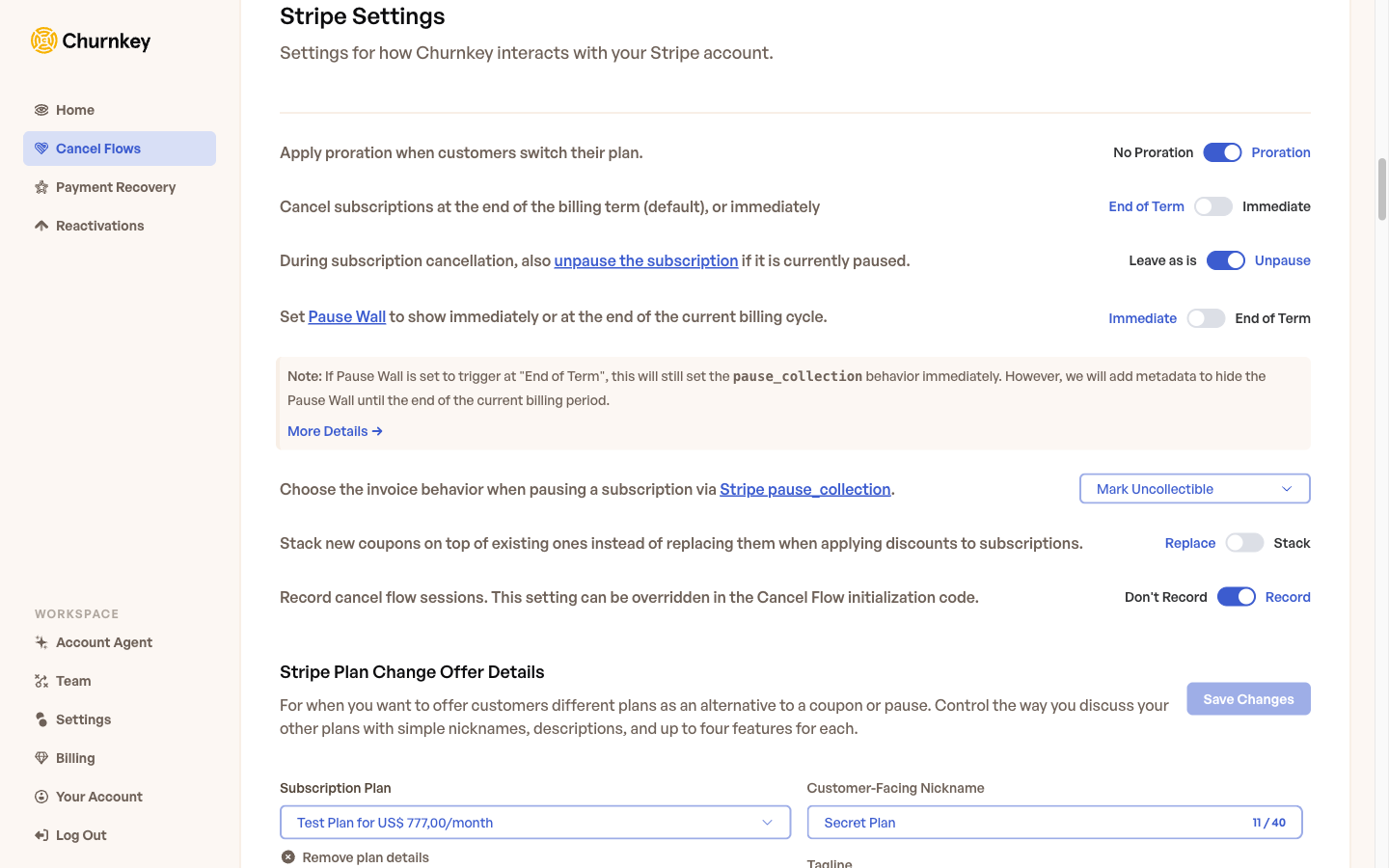
Accessing the settings
All three toggles live on a single panel.
- Open the Churnkey dashboard and go to Cancel Flow → Settings.
- Scroll to the section named after your billing provider (for example, Stripe Settings).
- Flip any toggle. Changes take effect on the next Cancel Flow session — you do not need to redeploy the embed.
These settings apply account-wide to every Cancel Flow that runs under your Churnkey workspace. If you run A/B tests or segmented flows, the same Payment Provider Settings apply to all variants.
Pause invoice behavior
When a customer accepts a pause offer and your billing provider is Stripe, Churnkey pauses the subscription using Stripe's native pause collection feature. Stripe requires you to pick what happens to invoices generated during the paused window, and the Pause Invoice Behavior setting controls that choice.

Two options are available.
Mark uncollectible is the default. Stripe still creates invoices during the pause, but tags them as uncollectible so no collection attempts are made. When the pause ends, billing resumes normally. This is the cleanest audit trail: you have a full history of what would have been charged, and Stripe handles the bookkeeping.
Void tells Stripe to void the invoice entirely. No invoice exists after the pause takes effect, and nothing shows up in uncollectible reports.
Which one should you pick? It comes down to how your finance team counts revenue. Some teams treat mark_uncollectible invoices as churned revenue in their MRR reporting — because a real invoice was generated and never paid, it looks like a loss on paper. If that is your situation, switch to void so pauses stay neutral in your financials. If your reporting already excludes uncollectible invoices from churn, leave it on the default.
This setting only affects Stripe. Chargebee, Braintree, Paddle Billing, Paddle Classic, and Maxio use their own pause mechanisms and ignore this toggle.
This setting has no JavaScript equivalent. It is a dashboard-only control, so there is nothing to change in your embed code when you flip it.
Stack coupons
When a customer accepts a discount offer, Churnkey applies the new coupon to their subscription. By default, applying a new coupon replaces any coupon that was already on the subscription — Stripe only supports one active coupon per subscription at a time in most cases, so Churnkey removes the existing one before attaching the new one.
The Stack Coupons toggle changes that behavior. When enabled, Churnkey keeps the existing coupon in place and attaches the new one on top of it, allowing the discounts to compound.

Before this toggle existed, the only way to stack coupons was to write custom logic inside the handleDiscount callback — meaning any change required engineering work and a deploy. The dashboard toggle removes that requirement entirely.
When stacking is enabled, Churnkey also updates the customer-facing experience. The "Claiming this will override any existing discounts that you have." disclaimer that normally appears on the Discount Offer screen of the embed is hidden automatically, since the statement is no longer true.
Stack Coupons applies only to subscriptions. One-time payments are not affected by this setting.
When should you stack? Stacking is useful when you want layered retention incentives — for example, keeping an existing annual-plan coupon in place while adding a temporary cancel-save discount on top. It is also handy if your legacy customers already carry grandfathered coupons that you do not want the Cancel Flow to wipe out.
When should you leave it off? If your offers are designed as mutually exclusive (a 50% save offer is meant to replace, not add to, a 20% loyalty coupon), keep stacking disabled. The default behavior matches what most teams expect.
Record session
Churnkey can record Cancel Flow sessions for session playback so you can watch exactly how customers moved through your flow, which answers they picked, and where they hesitated. The Record Session toggle controls whether new sessions are recorded.

Recording is on by default. Turning it off stops all new recordings across every flow until you switch it back on. If a session is mid-recording when you flip the toggle to off, the recording stops immediately in runtime — the portion already captured is kept, but nothing new is written.
Supported providers: Stripe, Chargebee, Paddle Billing, Braintree, Paddle Classic, and Maxio.
Precedence with the record embed parameter
Unlike the previous two settings, Record Session has a JavaScript equivalent: the record option on window.churnkey.init('show', {...}). When both are present, the embed parameter always wins.
Init record value | Dashboard toggle | Result |
|---|---|---|
true | On | Session recorded |
true | Off | Session recorded (init overrides dashboard) |
false | On | Not recorded (init overrides dashboard) |
false | Off | Not recorded |
| (omitted) | On | Session recorded |
| (omitted) | Off | Not recorded |
The practical consequence: if you want to control recording centrally from the dashboard going forward, remove the record key from your embed code. Leaving it in — even set to the value you think you want — locks that behavior into your deploys.
// Dashboard-controlled: dashboard toggle is the source of truth
window.churnkey.init('show', {
  customerId: 'CUSTOMER_ID',
  authHash: 'HMAC_HASH',
  appId: 'YOUR_APP_ID',
  // record key intentionally omitted
});

// Code-controlled: always records, dashboard toggle has no effect
window.churnkey.init('show', {
  customerId: 'CUSTOMER_ID',
  authHash: 'HMAC_HASH',
  appId: 'YOUR_APP_ID',
  record: true,
});
If you are turning recording off for compliance reasons (for example, a specific customer segment opts out), keep record: false in your embed for that segment rather than relying on the dashboard — code-level enforcement is unambiguous and auditable.
When do I still need to redeploy?
The three toggles on this page were chosen specifically so they would not require a deploy. For a quick reference on what can now be changed from the dashboard versus what still lives in code:
| Behavior | Dashboard | Embed code |
|---|---|---|
| Pause invoice behavior (Stripe) | Yes | No |
| Stack coupons on discount | Yes | No |
| Record session (default) | Yes | Yes (record) — init wins when both set |
| Customer ID / subscription ID | No | Yes |
| Live / test / sandbox mode | No | Yes (mode) |
| Dynamic offers override | No | Yes (dynamicOffers) |
Handler callbacks (handleCancel, etc.) | No | Yes |
| Custom attributes for segmentation | No | Yes (customerAttributes) |
For everything in the "Embed code" column, see Configuration Options.
Related
- Quick Start Guide — full embed initialization reference
- Configuration Options — all JavaScript parameters, including
record - Pause Action — how Churnkey executes pauses behind the scenes
Structured Follow-Up Questions
Collect deeper cancellation insights and deliver targeted retention offers with a second layer of predefined follow-up options in your cancel flow survey.
Hosted Cancel Flow
Send customers to a Churnkey-hosted cancellation page instead of embedding the JavaScript SDK in your application.