Campaign Templates
When you start a new Payment Recovery campaign, Churnkey suggests recommended scenarios so you can launch a complete email cadence without building it from scratch. Each scenario ships with a target audience, a five-email cadence tuned to a specific decline reason, and baseline copy you can edit afterwards.
You can pick more than one scenario at the same time. Churnkey creates one campaign per scenario, and each one lands in your Campaigns list as a draft so nothing goes live until you are ready.
Open the scenario picker
From the dashboard, go to Payment Recovery → Campaigns and click Add New Campaign in the top right.

The picker opens in a modal over the Campaigns page and stays scoped to the new campaign you are creating — your existing campaigns are not affected by anything you do inside it.
Choose one or more scenarios
Every scenario card describes the situation it is built for, how long the cadence runs, and how many emails it contains. The two Recommended options at the top — Hard decline recovery and Soft decline recovery — come pre-selected and cover the majority of failed payments for most subscription businesses.
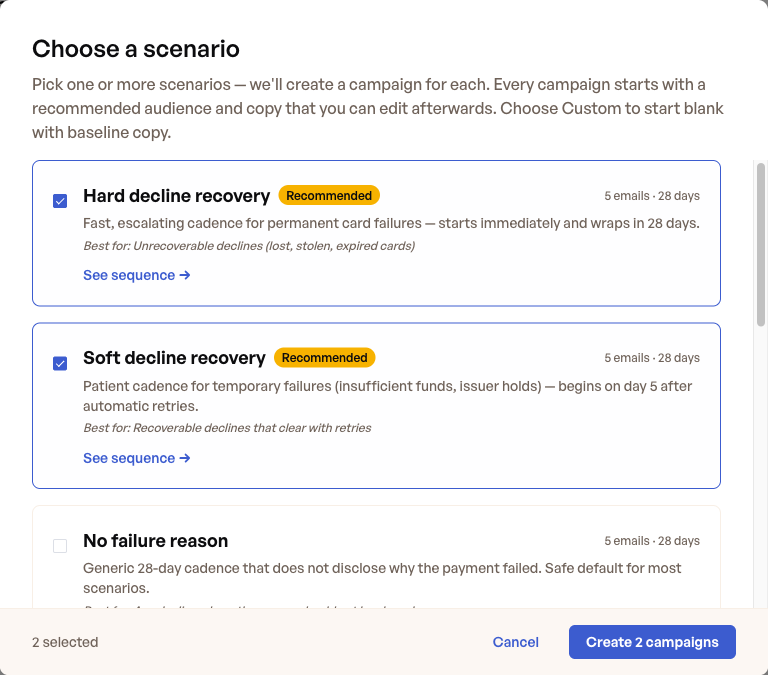
Scroll down for the full catalog. You can mix and match — for example, keep the two recommended scenarios and add Billing contacts (B2B) if part of your customer base pays through a designated billing contact.
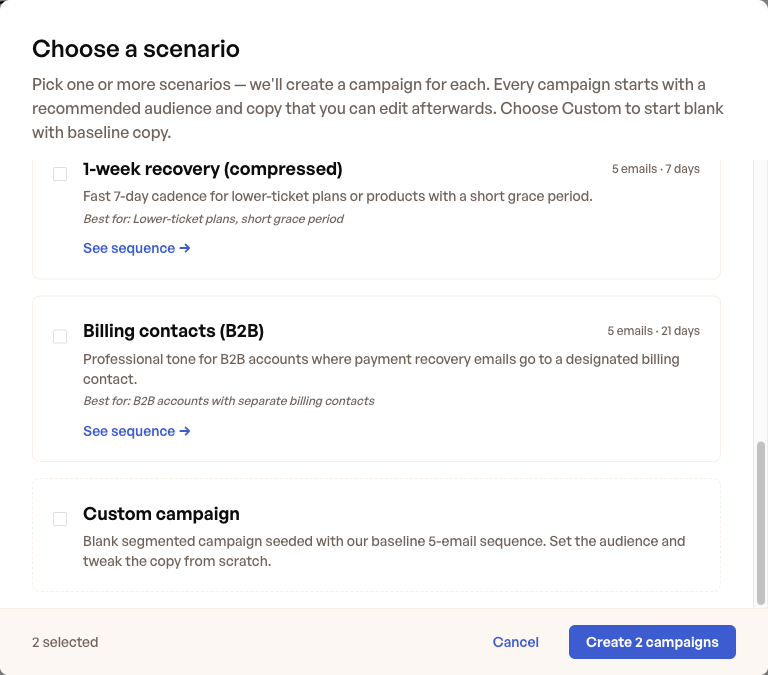
What each scenario is for
| Scenario | Best for | Length | Emails |
|---|---|---|---|
| Hard decline recovery (Recommended) | Unrecoverable declines — lost, stolen, or expired cards | 28 days | 5 |
| Soft decline recovery (Recommended) | Recoverable declines that may clear with retries — insufficient funds, issuer holds | 28 days | 5 |
| No failure reason | Any decline where the underlying reason should not be shared with the customer | 28 days | 5 |
| 2-week recovery | General-purpose cadence for most decline scenarios | 14 days | 5 |
| 1-week recovery (compressed) | Lower-ticket plans or short grace periods | 7 days | 5 |
| Billing contacts (B2B) | B2B accounts where recovery emails go to a designated billing contact | 21 days | 5 |
The difference between Hard decline recovery and Soft decline recovery is more than just copy. Hard declines are permanent — retries will not help, so the cadence is faster and points the customer directly at updating their payment method. Soft declines are temporary, so the cadence is paced to let automatic retries clear the failure on their own before escalating to the customer. The result is fewer unnecessary nudges for customers whose problem the system might fix without their involvement.
The audience filters that route each customer into Hard vs. Soft decline campaigns come from the Stripe decline reason on the most recent failed-payment attempt. The same logic powers the Payment Decline Type segment filter described in Customize your Campaigns.
Preview the email sequence
Before you commit to a scenario, click See sequence → on any card to expand the full cadence. The preview shows the day each email goes out and the subject line you are starting from.
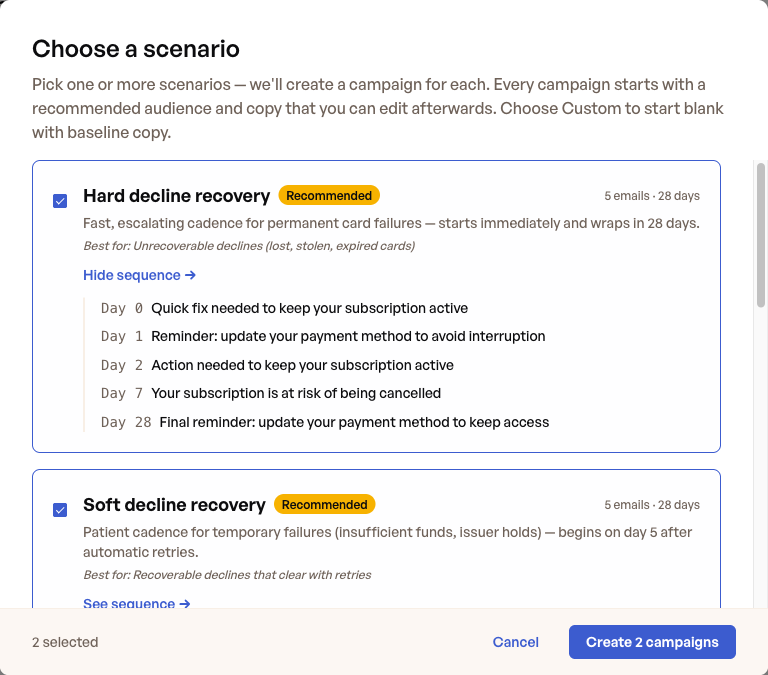
Every subject line and email body is fully editable after the campaign is created. The sequence preview shows you the starting point, not the final copy.
Create the campaigns
The footer of the picker tells you how many campaigns will be created — one per scenario you have selected. Click Create N campaigns to provision them all in a single step.
Once created, the new campaigns appear in your Payment Recovery Campaigns list with status Unpublished Changes. They will not send any emails until you review each one and publish it, which gives you a chance to edit the audience, swap subject lines, attach offers, and adjust send timing before customers see anything.
Frequently Asked Questions
Can I pick more than one scenario at a time?
Yes. Churnkey creates one campaign per scenario in the same step. You can edit or delete any of them afterwards.
Are the recommended scenarios the same for everyone?
The two pre-selected scenarios — Hard decline recovery and Soft decline recovery — are our recommendations for most subscription businesses. You can uncheck them and pick any other combination.
Will my existing campaigns be affected?
No. The scenario picker only creates new campaigns. It does not modify or replace campaigns you already have.
How do I customize the email copy after creating campaigns?
Open any campaign from the Payment Recovery → Campaigns list and click Edit. Each email in the sequence can be edited individually — subject, body, send timing, and optional discount offer.
Once your campaigns are created, head over to Customize your Campaigns to fine-tune the audience filters, email content, sender details, and personalized offers for each one before publishing.