Campaign configuration
Open Annual Upsell → Manage in your Churnkey dashboard, then select Edit on your campaign. You can have one campaign at a time.
The screenshots in this guide show a fictional setup for illustration only. Campaign names, audience conditions, plans, prices, discounts, and invitation counts are examples. Configure your campaign using your own plans, pricing, and audience.
Choose your audience
In the Audience tab, give the campaign a recognizable name and add conditions for the customers you want to reach. For each condition, choose an attribute, an operator, and the value to match. All conditions must match. You can use the available subscription and customer attributes, including configured custom attributes.
For example, target customers on a specific monthly plan before offering its annual equivalent. Customers must also pass the automatic subscription eligibility checks described in the overview.
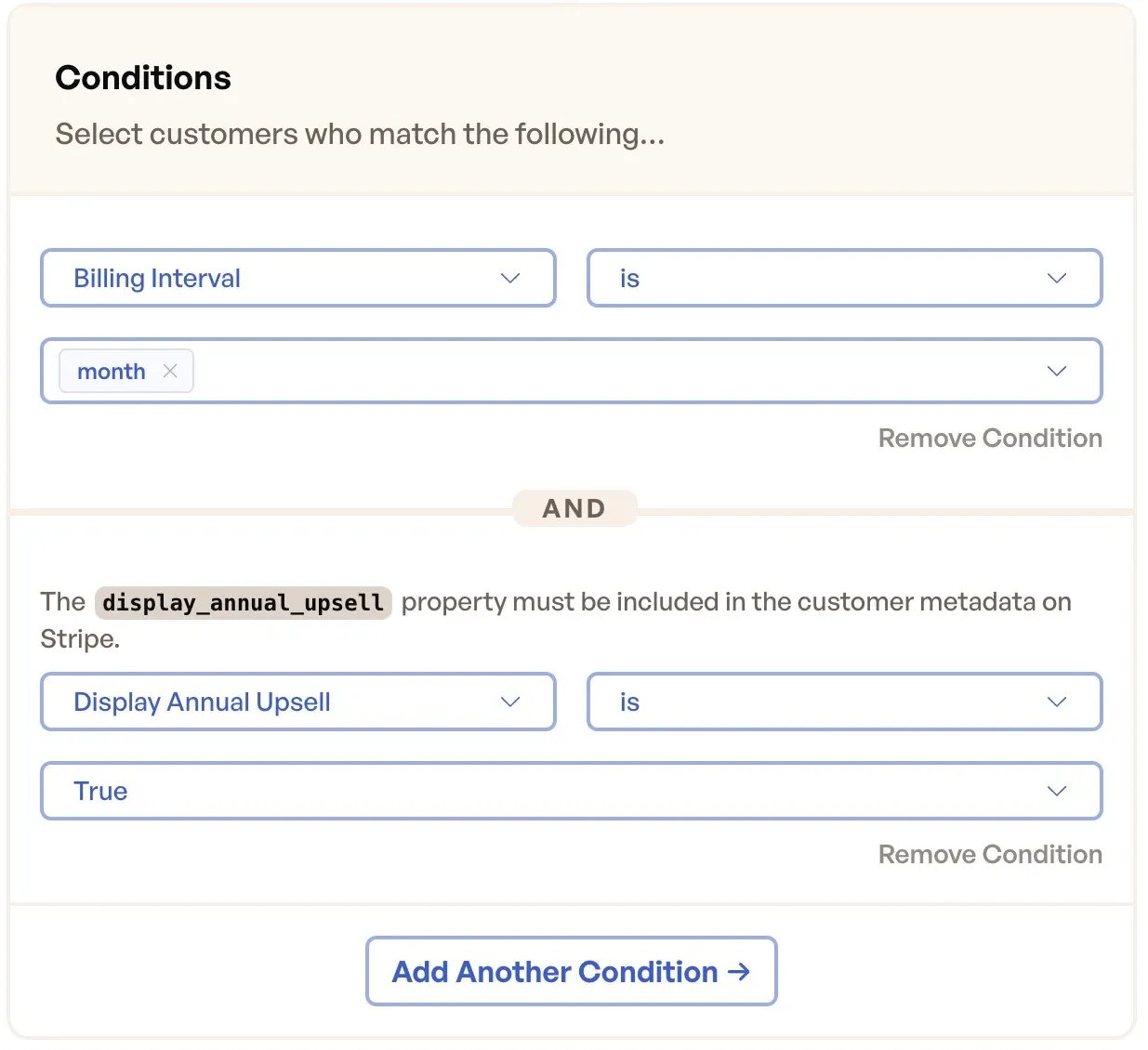
Fictional example audience. Choose attributes and values appropriate for your own customers.
Choose where the offer appears
Under Where It Shows, choose All pages or Specific pages. With Specific pages, enter one URL pattern per line in Show on and add exclusions in Never show on. Use * as a wildcard: for example, /library/* includes pages under your library, while /checkout/* can exclude checkout pages.
Excluded pages take precedence over included pages. The automatic flow waits until the customer reaches an allowed page before requesting an offer. Navigating to an excluded page hides an existing offer.
Set offer frequency
Under Frequency Cap, set Don't show again for to a value from 1 to 365 days. This controls the automatic offer window; the default for a new campaign is 30 days. Closing an offer does not make the customer eligible for another automatic offer immediately. Reaching the end of the frequency window does not guarantee another offer: audience and subscription eligibility still apply.
A customer who has already accepted a live Annual Upsell offer will not receive another one.
Select annual plans and a discount
In the Offer tab, use Upgrade Plans to choose the annual plans from your connected billing provider. Confirm that each plan has the intended annual billing interval and currency.
Under Sweetener Coupon, you can optionally select a coupon. Use an active coupon that applies to the intended subscription and plan. If Churnkey cannot resolve a usable coupon, it withholds the offer instead of displaying a discount it cannot apply.
For example, pair an annual plan with an additional discount for customers who accept the offer. Check the coupon's amount and duration in your billing provider, and describe those terms accurately in your offer copy.
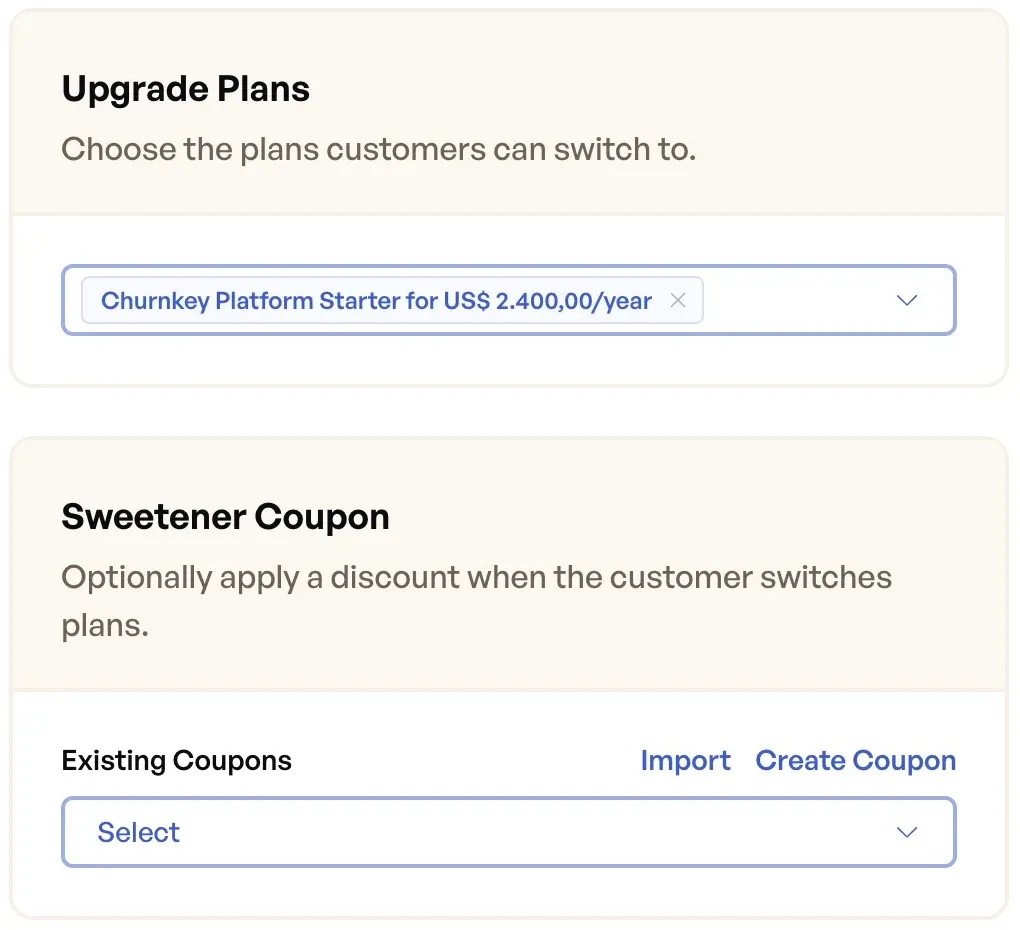
Plans and prices from the fictional example setup.
Match the current product
Under Settings → Upgrade Plan Selection, choose how Churnkey selects from your campaign's target plans:
- All Plans makes all selected target plans available in the offer.
- Matching Plan prefers plans that share the customer's current Stripe product. For example, a customer on a monthly Starter plan can receive the annual Starter plan when both prices belong to the same product.
If no matching product is found, Churnkey falls back to all selected target plans. Use audience conditions and a suitable target-plan list if you need to restrict which plans a customer can receive.
Design the offer
In the Offer tab, use Modal Content to build the offer from blocks. Drag blocks to change their order, expand a block to edit it, and use Space below to adjust its spacing.
| Block | What you can configure |
|---|---|
| Heading and text | The headline and supporting copy explaining the offer. |
| Price | The amount and label displayed, with Regular, Struck (crossed out), or Hero (highlighted, with an optional tag) styling. |
| Button | The call to action, background and text colors, and destination plan when multiple plans are selected. |
| Dismiss | The text customers use to decline, such as “Keep monthly.” |
| Invitation counter | A progress bar, badge, or counter for a campaign with limited invitations. |
Each offer needs at least one button to choose a plan. When you offer multiple plans, assign a target plan to each button before publishing.
Display text and custom price labels do not change the amount charged by your billing provider. Keep them consistent with the actual plan and coupon.
Top bar
Enable Top bar to add a colored strip above the offer. Set the Message, Background, and Text colors. Use it for a short message such as “Your annual upgrade offer.” When Countdown is enabled, the timer also appears in this bar.
Minimized state
Enable Minimized state to start the offer as a compact pill that customers can click to open. Customize Pill text, Pill color, and Text effect (None or Rainbow).
With this setting enabled, closing the expanded modal returns it to the pill so the customer can reopen it. With it disabled, closing the modal dismisses the offer. The offer's decline action still lets the customer decline explicitly.
Countdown
Enable Countdown and set Offer lasts to a whole number from 1 to 168 hours per customer. Each customer's timer starts when the offer is first issued for display and does not restart when they reopen it. For example, a 24-hour offer first shown at 2 p.m. reaches zero at 2 p.m. the following day.
Set Last chance text to customize the message shown in the top bar when the timer reaches zero. Use Preview the last chance state to inspect that presentation before publishing.
The timer is visible only in the Top bar or the Minimized state pill. Enable at least one of these if you want customers to see the time remaining. With both disabled, the countdown still runs but is not visible.
If the countdown reaches zero while the offer is on screen, the customer can still accept it during that session. Expiry prevents the offer from being shown again; it does not immediately block acceptance of an offer already open.
Limited seats (Limited invitations)
Enable Limited invitations to cap how many customers can accept the campaign. Set Number of invitations to a whole number from 1 to 100,000. This limit applies across the campaign, rather than separately to each customer.
Enabling this option adds an Invitation counter block to the offer. In that block's Design setting, choose Progress bar, Badge, or Counter to show claimed or remaining invitations. For example, a campaign with 100 invitations and 35 accepted offers has 65 invitations left.
An invitation is claimed when a customer accepts, not when they view the offer. If the subscription change fails, the invitation becomes available again. Once every invitation is claimed, Churnkey stops showing new offers and prevents further acceptances, including from customers who already have the offer open.
Keep an invitation counter in the offer while using this limit. Removing the last counter block also turns off Limited invitations.
Confirmation screen
Keep Confirmation screen enabled to give customers a review step with plan and proration details before they confirm the switch. This setting is enabled by default.
Turning it off lets the offer's plan button submit the subscription change immediately. Use button copy that makes this action clear, and verify that each button is assigned to the intended plan.
Preview and test
Use the Preview panel in the Offer tab to check your copy, plan buttons, layout, and optional display elements. Switch between Expanded and Minimized to inspect both presentations.
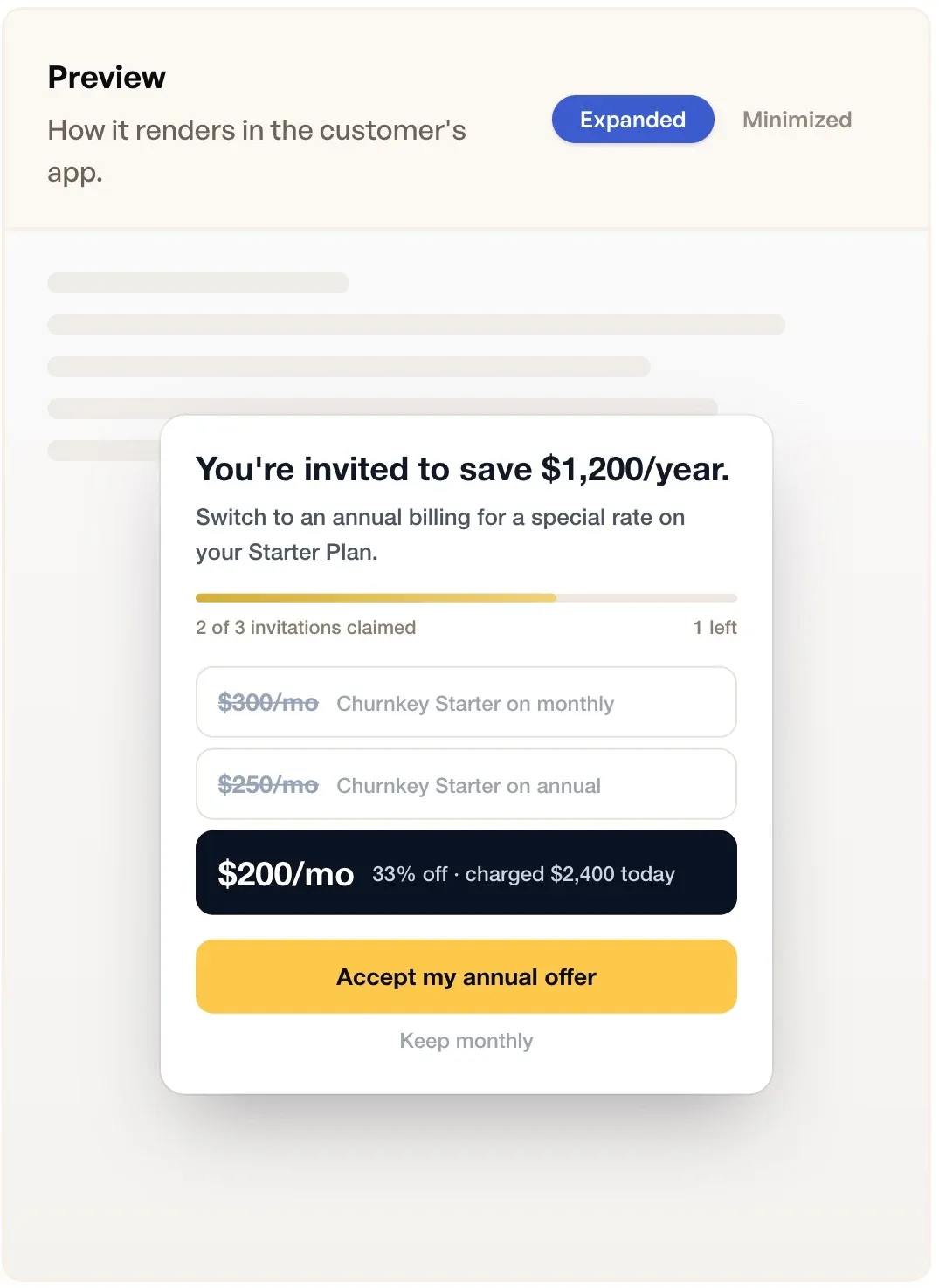
Fictional example offer. Prices, savings, and invitation counts are for illustration only.
The eye icon in the editor toolbar opens a preview. The adjacent dropdown contains Test with Customer….
Confirming a customer test in the dashboard can change the customer's real subscription and apply the configured coupon. This test uses live billing credentials. Do not confirm a plan change for a customer unless you intend to make that change.
For a display-only test of your Churnkey script integration, see preview the integration.
Publish and enable
Review your audience, target plans, coupon, and content, then select Publish for a new campaign. An already published campaign shows Push Changes. The arrow below points to this control in the top-right corner of the editor.
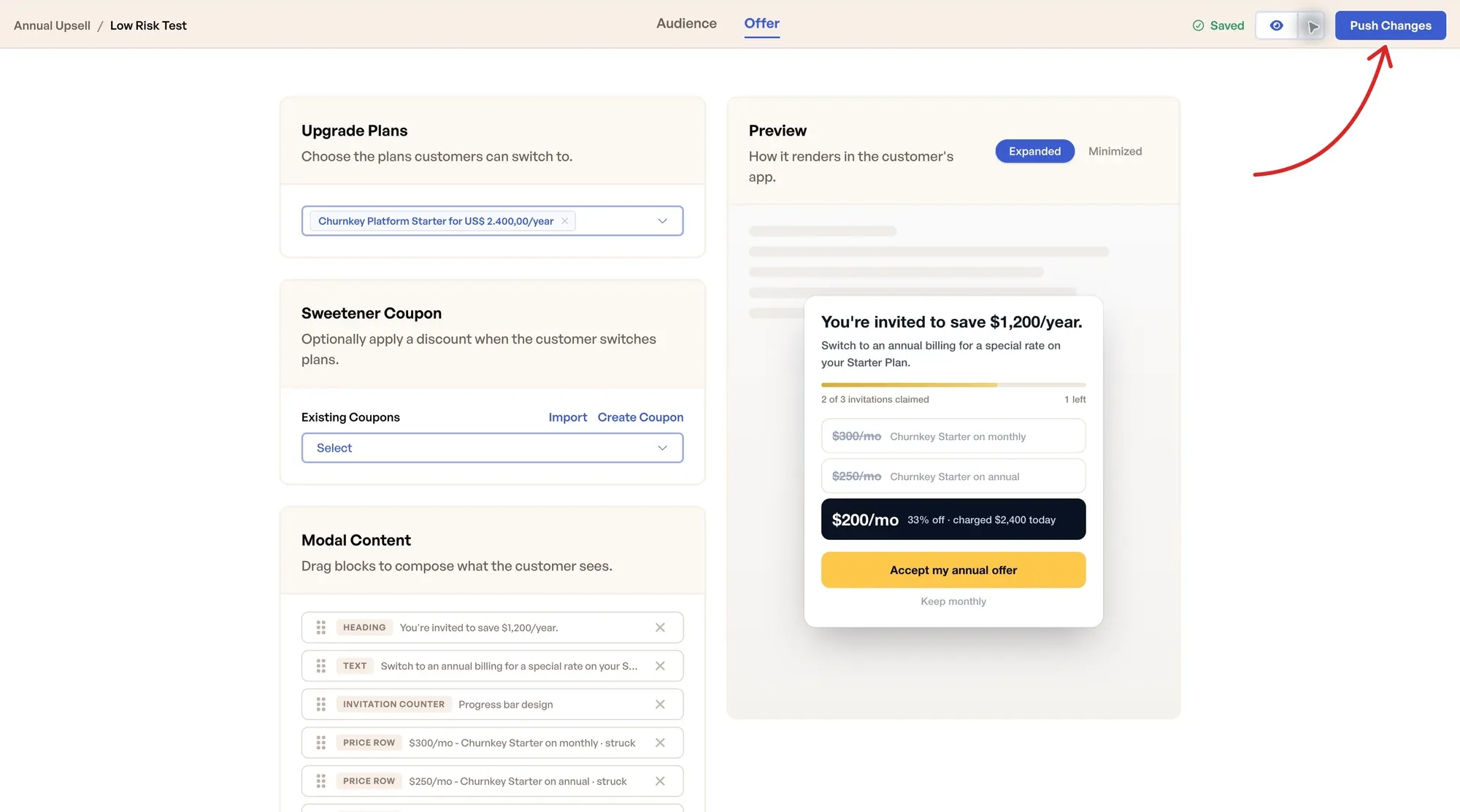
Fictional example setup. The publishing control appears above the offer editor and preview.
Open Annual Upsell → Settings and set Enable Annual Upsell to On when you are ready to display offers. Ensure your application calls the Churnkey script.
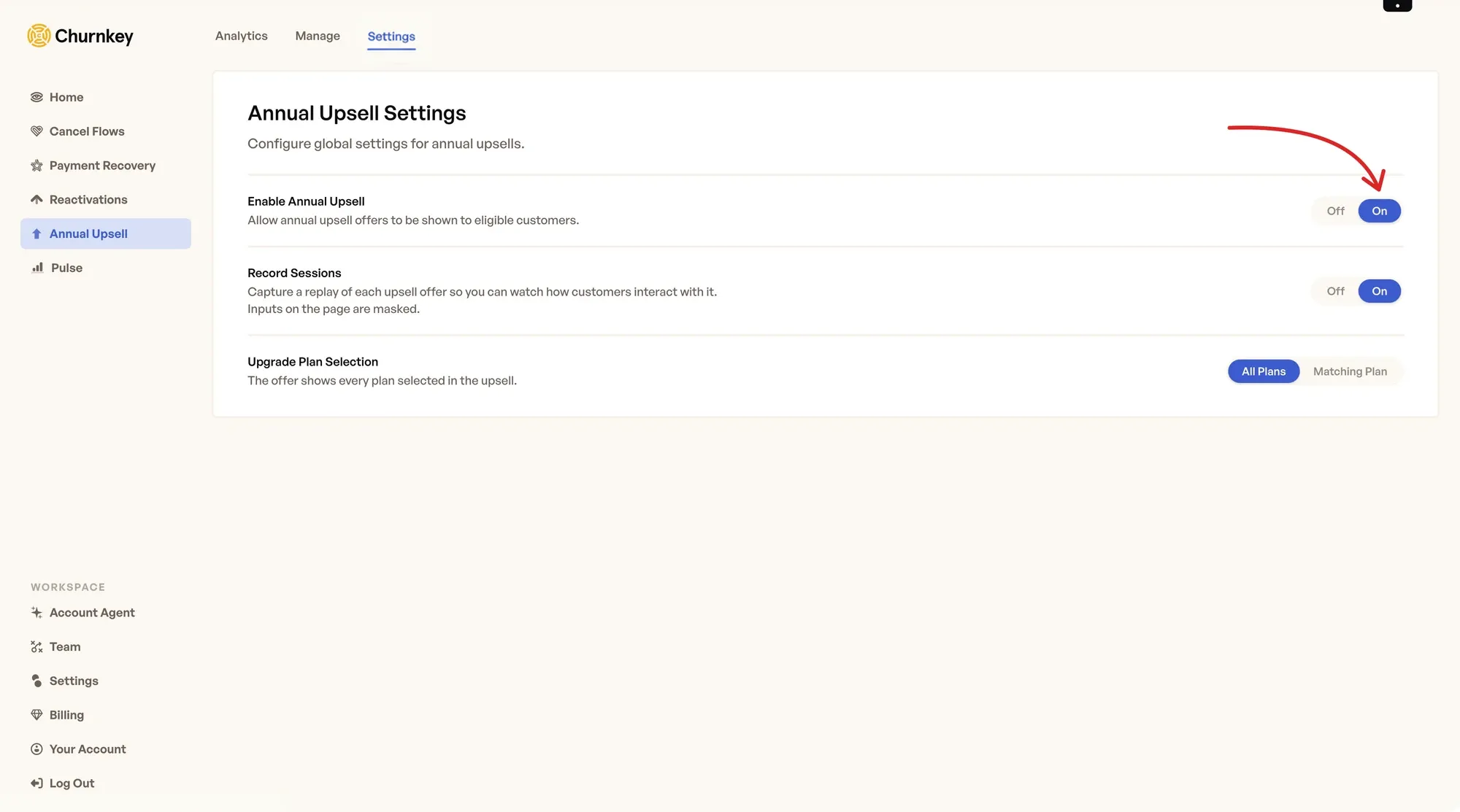
Fictional example setup with Annual Upsell enabled. The arrow identifies the activation control.
Edits are saved automatically. Changes saved to an already published campaign affect the active campaign; they are not kept in a separate unpublished draft. Disable Annual Upsell in settings before making changes you do not want customers to see yet.
Record sessions
In Annual Upsell → Settings, use Record Sessions to control whether Churnkey records interactions with the offer for later review. Recording is enabled by default. Your Churnkey script's recording preferences can also prevent a session from being recorded.
Use recordings to review how customers interacted with the offer alongside the campaign analytics. Not every session will have a recording.