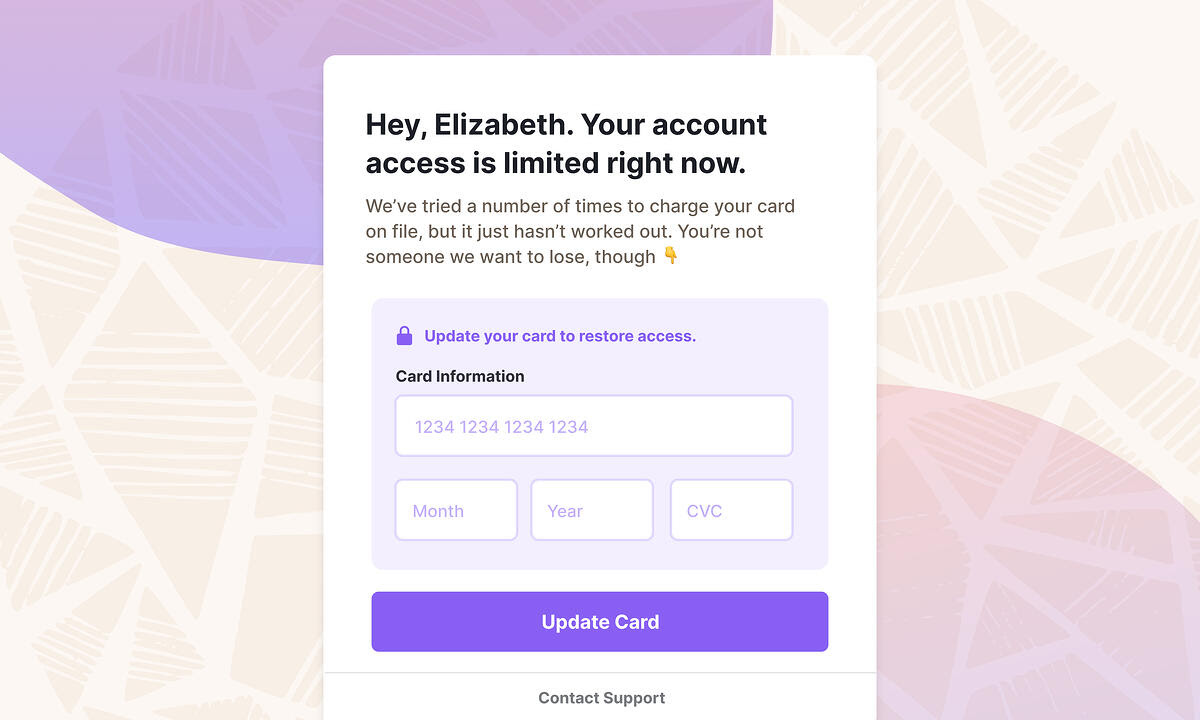
The Failed Payment Wall helps you recover revenue by automatically blocking access to your application when a customer's payment fails. It displays a streamlined UI for customers to update their payment information and immediately retry failed charges.

Currently available for Stripe only
Quick start
To implement the Failed Payment Wall:
- Ensure the Churnkey script is loaded
- Add the below code to your application initialization
- Customize the wall behavior (optional)
window.churnkey.check('failed-payment', {
  // Required - Authentication & identification
  customerId: 'CUSTOMER_ID',
  authHash: 'HMAC_HASH',
  appId: 'YOUR_APP_ID',
  provider: 'stripe',

  // Optional - Wall behavior
  mode: 'live',           // Use 'test' for development
  softWall: false,        // Allow users to exit the wall
  gracePeriodDays: 0,     // Days before enforcing hard wall
  forceCheck: false,      // Skip caching (not recommended)
  subscriptionId: 'SUBSCRIPTION_ID' // Target specific subscription
})
How it works
The Failed Payment Wall activates automatically when:
- A customer has invoices with
openstatus in the last 60 days - Their most recent invoice is not
paid
When activated, it:
- Blocks access to your application
- Displays a payment update form
- Processes the new payment method
- Restores application access on success
3D Secure and card verification
Some failed payments do not need a new card at all. They fail because the bank requires the customer to confirm the charge through 3D Secure (3DS), the bank-side step behind Strong Customer Authentication (SCA). The card on file is valid; it just needs the customer to approve the payment once.
When the Failed Payment Wall detects a payment in this state, it shows a Verify your card flow instead of the usual update form:
- The wall asks the customer to confirm the card already on file, so there is no need to re-enter card details.
- The customer taps Verify your card and completes the 3D Secure challenge from their bank in place, inside the wall.
- Once the challenge succeeds, the invoice is charged and application access is restored without a redirect to a hosted page.
If the customer would rather pay with a different card, a Use a different card link switches the wall back to the standard payment update form.
This flow runs entirely in your application — the customer never leaves the wall. Behind the scenes, Churnkey creates a payment intent, attaches it to the open invoice, applies any campaign discount that was in effect, and resumes an earlier interrupted authentication attempt if one exists, so a customer who started verifying and dropped off can finish where they left off.
At launch, in-app card verification applies to Stripe-billed subscriptions, so other billing providers are not covered yet. The same Verify your card flow is also available on the hosted Payment Recovery page and in Payment Recovery emails for payments blocked on authentication.
Recovered payments through your own Stripe account
By default, Churnkey authenticates the recovered payment with its own payment intent. If you connect Stripe through Churnkey's OAuth connection, you can optionally add a dedicated set of Payment Recovery keys — a recovery Secret Key and Publishable Key — on your Stripe connection so that recovery instead authenticates the invoice's own payment intent.
With those keys in place, a payment recovered through 3D Secure appears as a regular payment in your own Stripe Dashboard, and Stripe's one-click cancel-and-refund on the invoice keeps working. This is optional: an account without the recovery keys falls back to the default recovery flow, which still completes 3D Secure for the subscriber.
The recovery keys are separate from the API Key used for subscription management, so opting in does not change how pauses, discounts, or cancellations are processed. See Payment Recovery keys on the Stripe connection page for how to add them.
How verification-required payments are segmented
A payment blocked on 3D Secure is neither a hard decline nor a soft decline. The card is valid, so it is not a hard decline, but automated retries cannot recover it on their own, so it is not a soft decline either. Because of this, these payments are excluded from the Payment Decline Type segment (Soft Decline / Hard Decline) and fall through to your catch-all campaign unless you target them directly with the Authentication Required decline reason. See Customize your Campaigns for how decline-based segmentation works.
Configuration
Core options
| Option | Type | Default | Description |
|---|---|---|---|
mode | string | 'live' | 'live' or 'test' environment |
softWall | boolean | false | Allow customers to exit the wall. Not used once a campaign is published |
gracePeriodDays | number | 0 | Days to show dismissible wall before enforcing. Not used once a campaign is published |
forceCheck | boolean | false | Bypass payment status cache |
ignoreInvoicesWithoutAttempt | boolean | false | Only show wall for failed charge attempts. Not used once a campaign is published |
Payment Wall campaigns
You can also set up the wall from the Churnkey dashboard. Open Payment Recovery, then the Payment Wall tab, and click Add Primary Campaign. The primary campaign is the wall every customer with a failed payment sees. Campaigns you add after it are segmented: each has an audience, and a customer gets the first campaign in the list whose audience matches them. Drag campaigns to change that order. Everyone else gets the primary.
An audience can use the customer's plan, price, billing interval, country, the amount due, and the decline on their latest charge. Payment Decline Type is Hard Decline for a card that will not work again, such as an expired or stolen card, and Soft Decline for one that might, such as insufficient funds. Payment Decline Reason is the exact Stripe code. A customer with no decline matches no decline condition, "is not" included, and gets the primary. That is a customer whose invoice has not been charged yet, and for Payment Decline Type also one waiting on 3D Secure or declined with a code outside both lists. See Segment by Decline Type for how the two types are decided.
Each campaign has a Wall tab with four parts:
- Behavior. A soft wall can be closed; a hard wall stays until the card is updated. A hard wall can have a grace period, counted in days from the invoice due date, during which the customer can still close it. You can also tell the wall to ignore invoices Stripe has not tried to charge yet.
- Content. The wall top to bottom, as blocks you can reorder: a title, text, the payment form, a contact support link and a cancel link. Every wall has exactly one payment form. New campaigns start with a title and text that use merge fields, so the wall greets the customer by name and names the card that failed.
- Close Wall. Shown for a wall the customer can close. The close control is either an X in the corner of the wall or a text link under the form, such as "Not now". You can set the link's label and the control's color. A link appears in Content, where you can move it.
- Colors. The primary color, text color, form background and button colors. A color you leave unset uses the embed's default.
The preview on the right is the real wall, rendered by the embed with a sample customer and invoice. The card form is Stripe's own, with the payment methods your Stripe account offers, so it looks the way it will for customers. Nothing you type in it is charged or saved. For a hard wall with a grace period, a toggle shows it inside the grace period and after it.
Changes save as you make them. Click Activate Campaign to publish the first time, and Push Changes after that. Customers see the published version, so you can edit a live campaign without affecting them until you push. Version history lists every published version, and you can restore one into your draft.
Once the primary campaign is live, it controls what the wall says, how it looks, which buttons it has, whether customers can close it, and whether invoices with no charge attempt count. The embed stops reading softWall, gracePeriodDays and ignoreInvoicesWithoutAttempt from your code. It prints a console notice that lists the options it skipped.
The campaign wins on purpose. Most snippets set softWall and gracePeriodDays to something, often copied from an example long ago, and the embed cannot tell a deliberate value from a stale one. If your code won, a change made in the dashboard could silently do nothing, and the person who made it would have no way to see why. With the campaign in charge, what the builder shows is what customers get.
A published campaign has a status switch. Turning the primary campaign Off does not hide the wall: the embed goes back to the options in your code. Keep softWall and gracePeriodDays set the way you want them, even after you publish a campaign. Turning a segmented campaign off sends its audience to the primary.
Per-customer decisions stay in your code. shouldShowFailedPaymentWall works the same way with a campaign. Return 'soft' to let the customer close the wall, or false to hide it. Return 'hard' to turn off a soft setting. 'hard' does not end a grace period: while the campaign's grace period runs, the customer can still close the wall. The length of the grace period and the charge-attempt rule come from the campaign only; to serve them differently to different customers, add a segmented campaign.
If you pass handleSupportRequest or handleCancel, the contact support and cancel buttons call them. If you don't, the support button opens the support URL from the campaign, and the cancel button cancels the subscription through Churnkey.
Title and text blocks can use merge fields. Pick one from the editor's merge field menu, or write it as {{FIELD|fallback}}. The fallback appears when the field has no value. Always include the |, even with nothing after it. Merge fields also work in the close control's label.
| Field | Value |
|---|---|
CUSTOMER_NAME, CUSTOMER_NAME.FIRST, CUSTOMER_NAME.LAST | The customer's name in your billing provider |
CUSTOMER_EMAIL | The customer's email address |
INVOICE_AMOUNT | The amount due, in the invoice's currency |
INVOICE_CURRENCY | The invoice's currency code |
INVOICE_DUE_DATE | The invoice's due date. If Stripe has none, the date the invoice was created |
CARD_BRAND, CARD_LAST4 | The card Stripe tried to charge |
GRACE_DAYS_LEFT | Days left in the grace period. 0 when there is no grace period or it has ended |
Amounts and dates are formatted for the customer's browser language. You can also use metadata from the Stripe customer and subscription, and any attributes you set with window.churnkey.updateCustomerAttributes().
Custom display logic
Control when to show the wall based on your business rules:
window.churnkey.check('failed-payment', {
  // ... other options
  shouldShowFailedPaymentWall(overdueInvoice, customer) {
    // Examples:
    if (overdueInvoice.amountDue > 50000) {
      return false           // Skip for high-value invoices
    }
    if (customer.isVIP) {
      return 'soft'         // Allow VIPs to dismiss
    }
    return true             // Show wall for others
  }
})
Return values:
true- Show wall (followssoftWall, or the campaign if one is published)false- Don't show wall'soft'- Show dismissible wall'hard'- Show enforced wall. If a grace period is running, the customer can still close it until it ends
Optional UI elements
Add extra buttons to the wall:
window.churnkey.check('failed-payment', {
  // ... other options
  handleLogout() { },         // Add logout button
  handleSupportRequest() { }, // Add support button
  handleCancel() { }         // Add cancel subscription button
})
Event callbacks
Monitor wall activity:
| Event | Description |
|---|---|
onFailedPaymentWallActivated() | Wall is displayed |
onUpdatePaymentInformation(customer) | Payment updated successfully |
onFailedPaymentWallClose() | Customer closed the wall, including after paying |
onError(error, type) | Error occurred |
Error types:
FAILED_PAYMENT_WALL_INITIALIZATION_ERRORFAILED_PAYMENT_WALL_UPDATE_CARD_ERRORFAILED_PAYMENT_WALL_CANCEL_ERROR
Testing
Test the implementation using Stripe's test cards:
- Create a test customer
- Add the test card:
4000000000000341(Stripe's "Decline After Attaching" card) - Create and add a subscription item to an invoice
- Enable auto-charging for the invoice
- Finalize the invoice to trigger the failed payment
- Verify the Failed Payment Wall appears
Watch a complete walkthrough: